
Loading…
Loading…
In this lesson, student will draw a square on Codey Rocky's screen while it also uses loops to drive in a square.
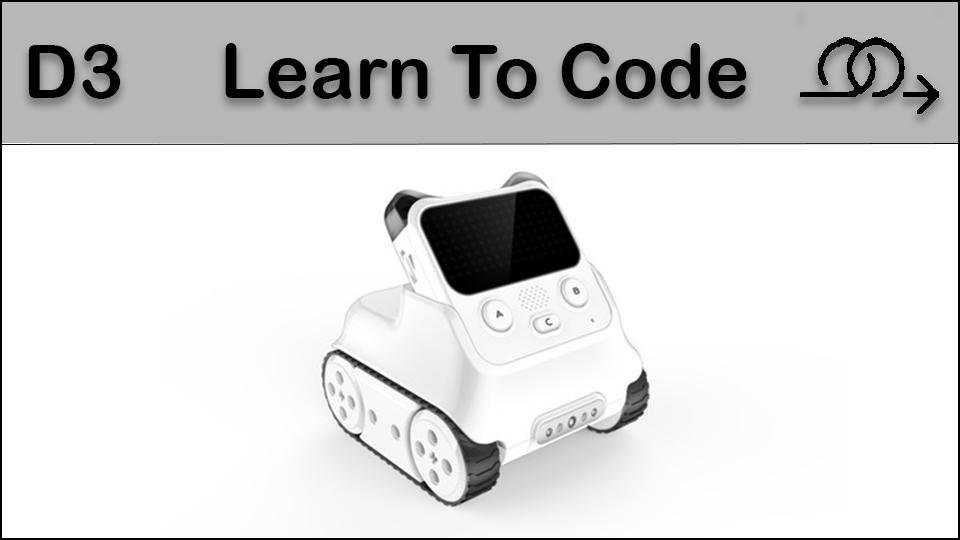
In this lesson, student will draw a square on Codey Rocky's screen while it also uses loops to drive in a square.
students will be able to describe what a loop is
students will be able to program a loop using Codey Rocky
Review our introductory video to get accustomed to Codey Rocky's different features: https://www.youtube.com/watch?v=q7t-H7s7yYM&t=13s
Fully charge the tablets and robots.
Install mBlock 5 on a compatible Windows or Apple device: https://www.mblock.cc/en/download/
Review the concept of sequences with the class. If time allows, have the students recreate their previous sequences, or load them from a saved file.
Say "What if we wanted to do that sequence over and over again? We are going to learn about loops today. Loops make repeating the same code over and over efficient"
Project your computer screen and open the mBlock 5 program. Point out the icon and how it can be found in your specific system or device. Discuss the wireless dongle and how it is used to connect a specific Codey Rocky to a computer. The dongle is required for the Codey Rocky to be connected to the computer, so keeping that dongle safe and with the proper Codey Rocky is very important.
(Optional) Work with the class to label their dongle and device if they are not labelled already. These can be permanent device identifiers using a label maker (i.e Codey Rocky 1) or have the class temporarily name their Codey Rocky and label it with a sticky note or piece of paper and tape. (even if a device has a permanent label, it is always fun to allow students to name their devices)
Model connecting Codey Rocky to mBlock 5 by performing the following steps:
Turn on Codey Rocky
Open mBlock 5 if it is not open already
In the area where it says "Connect your Device" click the BLUE connect button.
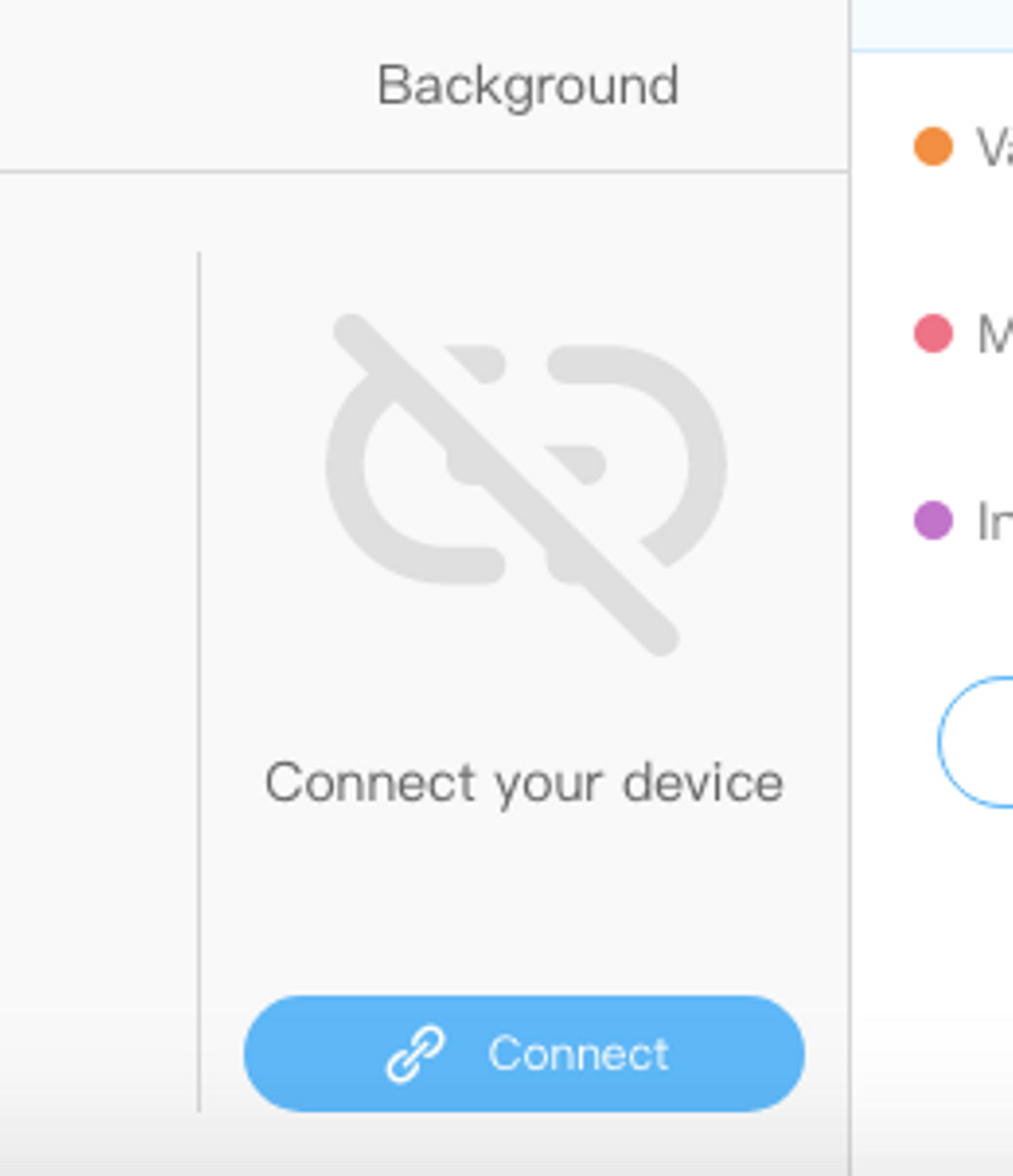
Plug in the USB dongle.
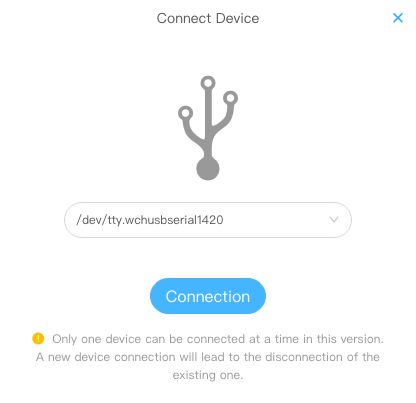
Select the USB dongle from the drop down. It will be listed as "/dev/tty.wchusbserial14xx" with the last two number being different depending on the port the USB is plugged in to (ex. 1410, 1420)
You will know the device is connected when the window in mBlock 5 changes, indicating a proper connection and your ability to now upload code to Codey Rocky.
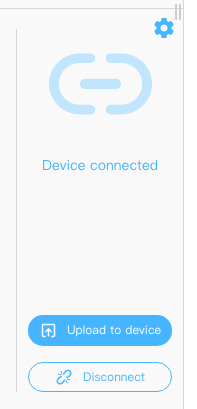
(Optional) Have students connect and disconnect their Codey Rocky from mBlock 5 a number of times to practice the process so they can do it independently going forward when instructed.
Introduce Loops as repeating steps that perform the same action over and over again.
Say: "To make our environments better, sanitation workers are going to plant trees alongside the pavement. The exact steps to plant a tree are: dig a hole, put down a sapling, cover it with soil and move forward 5 meters to plant another tree. If the road is 20 meters in length, then sanitation workers will have to repeat the same sequence of steps four times.
In computer programs, we sometimes use counting loops to repeat the piece of codes a specific number of times. On other occasions, the loop might be forever, or in other words, having no terminating conditions. In everyday life, infinite loops are happening around us, like sunset and sunrise. Similarly, when writing programs, we use the forever blocks to run the piece of codes endlessly.
Loop and Repeat have the same meaning. If you repeat doing something, you are performing a loop."
Ask students if they can think of any repetitive behaviors and how many times they repeat.
Teachers can give cues here:
brush teeth, two times each day
breathe, forever.
Say "In the last lesson we used Codey Rocky's screen to draw a square. Now we are going to use a loop to drive in a square at the same time."
Demonstrate the loop by creating and running the following code:
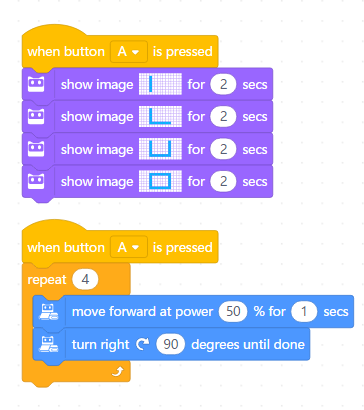
Note that while the original sequence code is the same, a loop in the form of a repeat block has been used to have Codey Rocky drive in a square.
Say "Now it is your turn to make a square and drive with Codey Rocky. Replicate the code on my screen, upload it to Codey Rocky to have it drive in a square while drawing it on your screen!"
(Optional) Offer a challenge to the students to make sure the timing of driving and drawing is matched. Once the timing is set for this small square, challenge them to drive in larger squares and match the timing of drawing on the screen, even using different ways to draw such as one dot at a time."
Move around the room observing and assisting as needed with their code and mapping out the dots.
Say "Now that we have used code to draw a square on Codey Rocky's screen and drive in a square using a loop, we will see what other shapes we make and drive in!"
4d: Exhibit a tolerance for ambiguity, perseverance, and the capacity to work with open-ended problems.
5a: Formulate problem definitions suited for technology-assisted methods such as data analysis, abstract models and algorithmic thinking in exploring and finding solutions.
6b: Create original works or responsibly repurpose or remix digital resources into new creations.
7c: Contribute constructively to project teams, assuming various roles and responsibilities to work effectively toward a common goal.
1B-AP-10: Create programs that include sequences, events, loops, and conditionals..
1B-AP-11: Decompose (break down) problems into smaller, manageable subproblems to facilitate the program development process.
1A-AP-12: Develop plans that describe a program’s sequence of events, goals, and expected outcomes..
1B-AP-15: Test and debug (identify and fix errors) a program or algorithm to ensure it runs as intended..
1A-AP-15: Using correct terminology, describe steps taken and choices made during the iterative process of program development.
C5: Students will use technology to aid collaboration during inquiry.
C6: Students will use technology to investigate and/or solve problems.
F6: Students will demonstrate a basic understanding of the operating skills required in a variety of technologies.
Algebra (Coding)
C3.1 solve problems and create computational representations of mathematical situations by writing and executing code, including code that involves sequential, concurrent, repeating, and nested events
P2: Students will be expected to use digital tools to develop ideas and original works in innovative ways.
TOC1: Students will be expected to
safely use many forms of current technology for learning with growing competence
demonstrate conceptual understanding of how information and communication technology, digital tools, and authorized networks support their learning
use terminology related to information and communication technology
• Make changes and test again, repeating until satisfied with the product
• Use materials, tools, and technologies in a safe manner, and with an awareness of the safety of others, in both physical and digital environments
• Identify the skills required for a task and develop those skills as needed
• Use familiar tools and technologies to extend their capabilities when completing a task
• Demonstrate a willingness to learn new technologies as needed