
Loading…
Loading…
Students are introduced to the concept of variables in programming. Students create a program that uses Event blocks to initialize and change the value of a variable. Students will use the variable to represent the amount of time that the mBot drives forward in a game of Robot Target Practice.
Students are introduced to the concept of variables in programming. Activity: Students create a program that uses Event blocks to initialize and change the value of a variable. Students will use the variable to represent the amount of time that the mBot drives forward in a game of Robot Target Practice.
For students to understand the definition and utility of variables in computer programming
For students to practice creating, initializing, and changing variables in mBlock
For students to use variables in a practical and fun robotic game
Class set of mBots and devices
Masking tape (1 roll)
Install mBlock on all devices.
Fully charge mBots/devices.
See the Teacher's Guide [attached] to become familiar with the mBot hardware and the mBlock software.
Arrange classroom to allow lots of floor space for testing programs.
Create the Robot Target Practice Activity space on the floor using masking tape (see below). Tape the starting line 2-3 meters away from the target.

Ask, "What is an Event in computer programming?" Sample response: An event is an action taken by the user that triggers a set of code to run.
Ask, "What actions have we used thus far in mBlock to trigger sections of code?" Sample response: Thus far we have used mouse-clicks and keyboard keys to activate sections of code.
Say, "Recall that we have seen several blocks thus far that are rounded and represent number values, rather than robotic commands. These blocks were placed inside other blocks in place of numbers."
Ask, "Which rounded number blocks have you used thus far and what number values did they represent?" Sample response: We have used two number blocks thus far. (1) The pick random # block, which contains a random number within a defined range, and (2) the light sensor block, which contains a number between 0 and 1000 that represents the amount of light reaching the light sensor.
Say, "As we have seen, the number values that these blocks represent can change. Said differently, they are variable. Keep this in mind for today's lesson!"
Say, "Today you will discover a new fundamental coding concept: Variables! Variables are an incredibly powerful and versatile tool that allow us to create much more interesting and useful programs. In fact, variables are an essential part of nearly all programs because they allow us to provide our programs/robots with information about the world around them, among many other features."
Ask, "What do you think is meant by the term "variable"? What do you think it means in computer programming?" Sample response: The term "variable" is often used as an adjective. If something is variable, that means that it can change. In computer programming we use the term as a noun, but in a similar way. A variable is something (in this case a block) that stores or represents a value that can change.
Show students the short video below, Variables Explained. This will help explain the meaning of variables in computer programming.
Say, "Today you will create your own variables and use Event blocks to change their number values in a game of Robot Target Practice! Let's get started!"
Introduction to Variables
This lesson uses the mBot motors exclusively. Refer to the Teacher's Guide for additional information about this hardware.
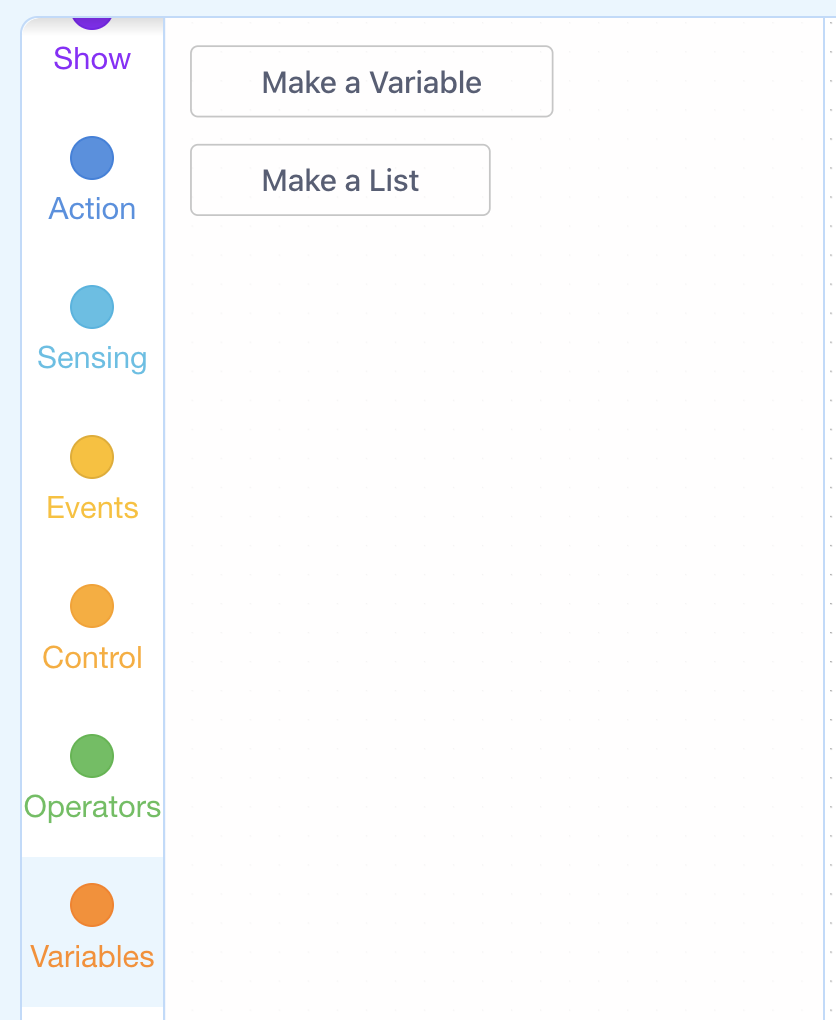
Say, "In mBlock, you can create a variable by clicking on the Make a Variable button in the Variables tab. Recall that this is quite similar to how we create functions in mBlock."
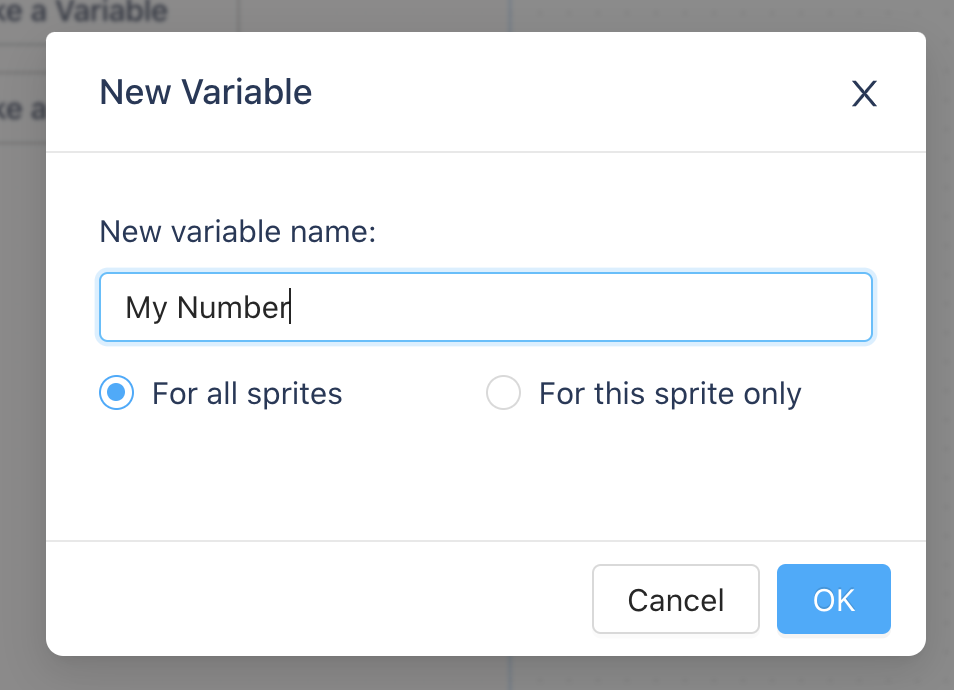
Say, "Clicking Make a Variable will open a window that prompts you to give your variable a name. In this example, the variable is simply called, My Number. This is to illustrate that you can name your variables anything. When you create your own variables however, give them a short name that describes what they represent with a little more detail."
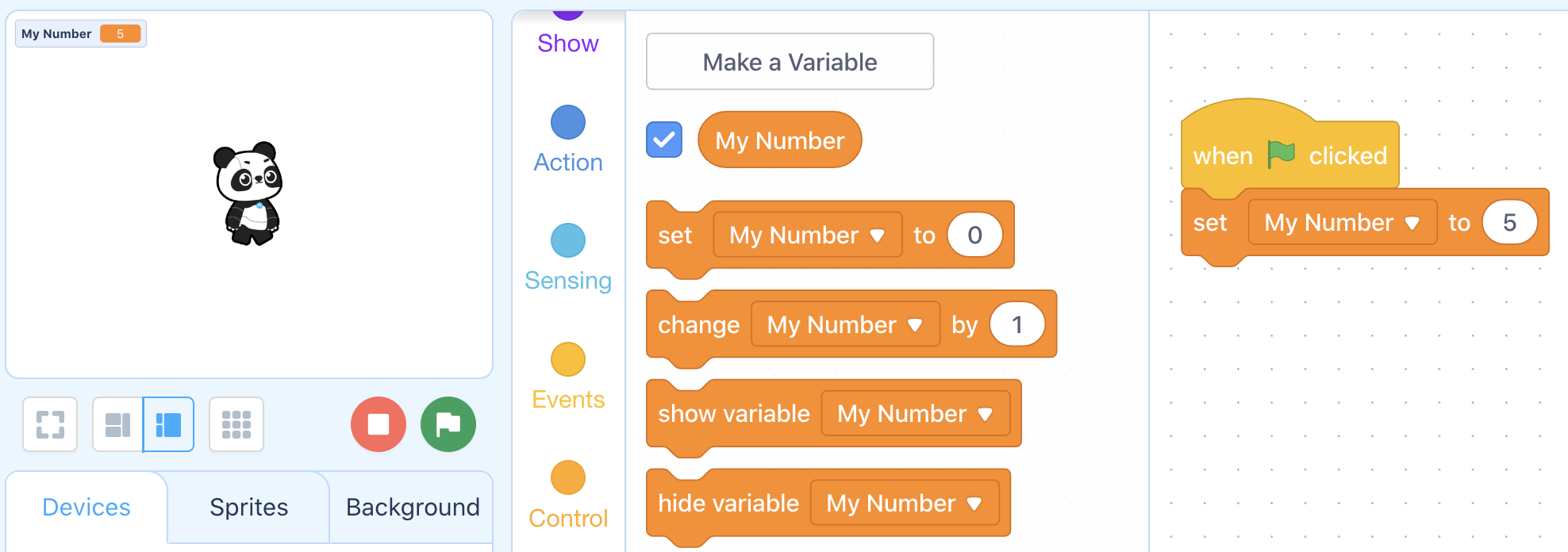
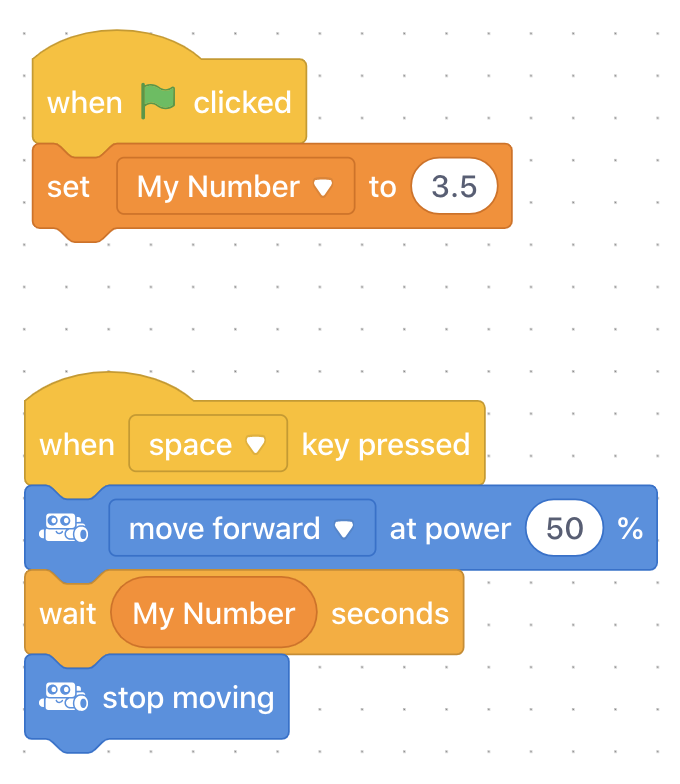
Say, "Once you have named the variable, it will appear, along with some other blocks, in the Variables tab. The rounded block is your variable! You can even see the current number value of your variable over in the Scratch sprite screen, on the left. To use a variable, the first thing we need to do is set the initial value, or the starting value. This is done using the set variable to block. In this example, we will also use an Event block to set the variable. Now, when the flag is clicked, the variable called My Number will be set to 5."
Say, "Once the initial or starting number of the variable has been set, it can be used anywhere a number would normally go in mBlock."
Ask, "In the following sequence, how is the variable being used? What will this cause mBot to do when the program is run?" Sample response: The variable is being used to define the wait time. When the space key is pressed, the mBot will drive forward for 3.5 seconds, then stop.
Ask, "What is a variable in computer programming?" Sample response: A variable is something that we can store information in (numbers or text).
Ask, "Once a variable is set, will it remain this value forever?" Sample response: Not necessarily. The value of variables can be changed.
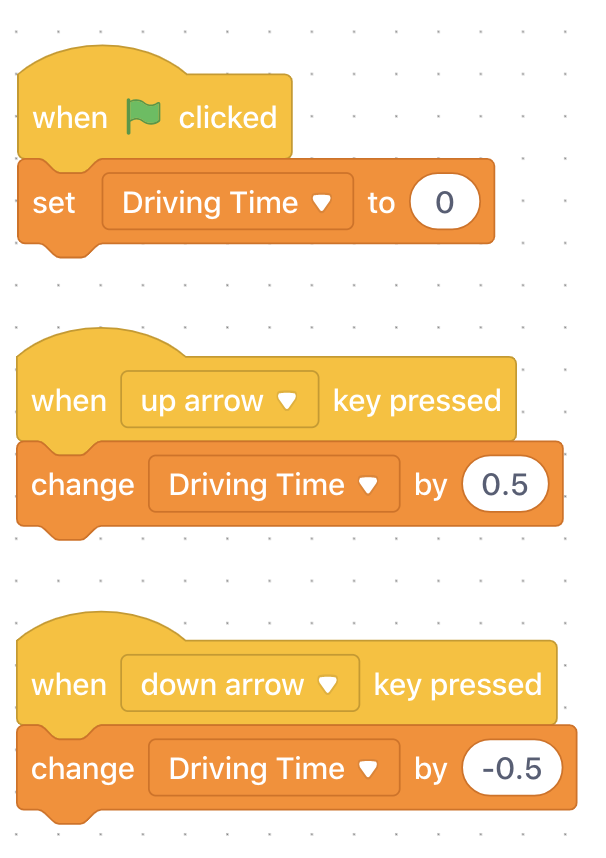
Say, "Your first coding challenge for this lesson is to create a variable, give it a name, and create event blocks that can be used to set the initial value of the variable and increase or decrease the value. To do this, you will need to use the change variable by block. This block changes the current value of the variable by whatever number is written in the block. If the number is positive, the variable will increase by this value. If the number is negative, the number will decrease by this value."
To summarize, challenge students to:
Create a variable in mBlock. Let students name the variable, but let them know that it will later represent driving time, just like in the Introduction example.
Create an event for setting the initial value of the variable. Set the variable to zero.
Create an event for increasing the variable using the change variable by block (positive number).
Create an event for decreasing the variable using the change variable by block (negative number).
Practice increasing and decreasing the variable. Student can view this change on the Sprite screen to the left of the blocks and tabs.
Coding Challenge #1 - Example solution
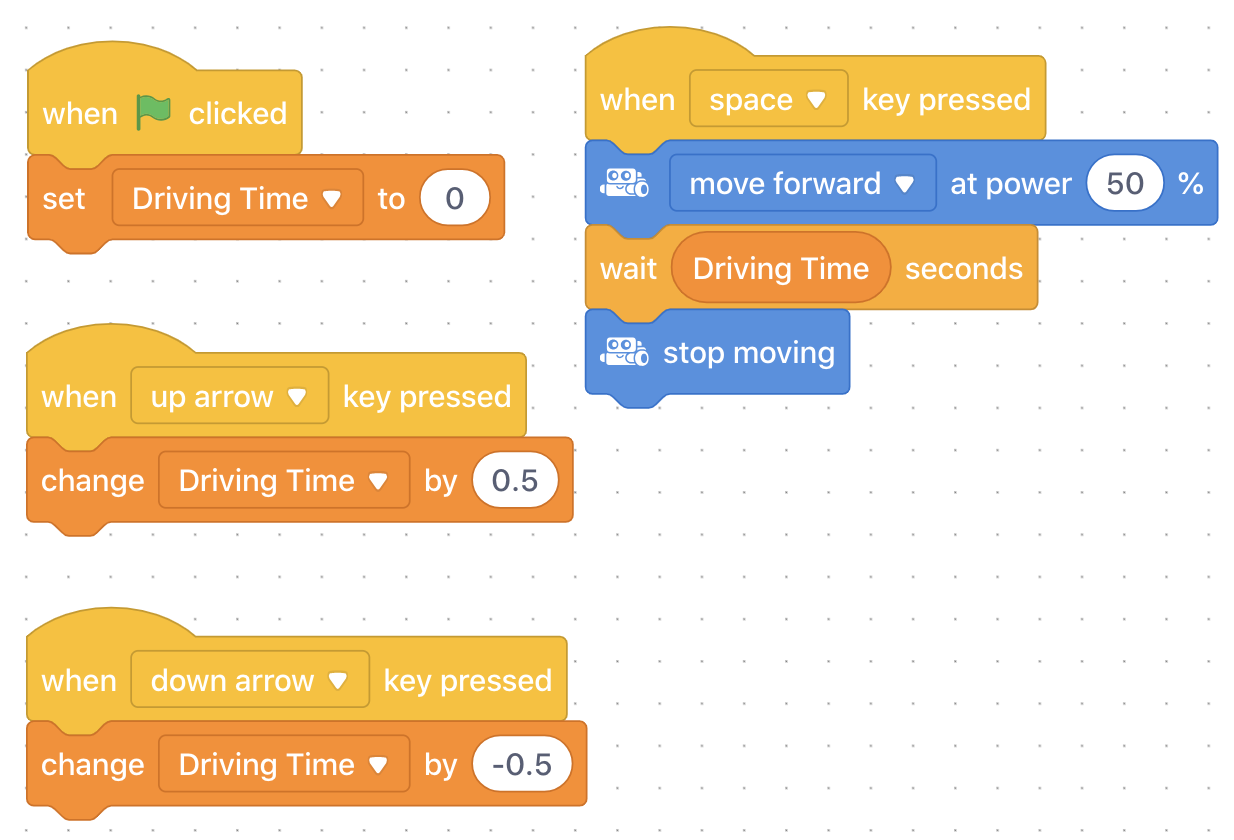
Say, "Once you have created the events for setting and changing the number value of your variable, it's time to see it in action! Your second coding challenge is to create a simple sequence that has your mBot drive forward, then stop. But, instead of programming a fixed wait time, you will use your new variable. Once you have created the sequence, practice changing the driving time using your event keys."
NOTE: With this program, students will not be able to change the driving time while their driving program is already running. They need to wait until it has finished moving, then change the variable value, then run the program again.
Coding Challenge #2 - Example solution
Ask, "Is wait time the only place where a variable can be used?" Sample response: "No, a variable can be used anywhere a number would normally go."
Say, "Time for some Robot Target Practice! The goal of this activity is for you to fine tune your variable to have your mBot drive for the precise amount of time necessary to land on the bulls-eye! Pay close attention to where your mBot ends up during each round so that you can make the correct adjustments to your variable while you wait for your next turn."
HINT: After students have had a chance to try the game, point out that it is possible to adjust how much the variable is changed with each key press, by modifying the change variable by block. For instance, if 5 seconds undershoots the bulls-eye, and 6 seconds overshoots, then changing the variable by 0.5 seconds each time might be the way to go.
Target Practice Setup

Ask, "In what ways is a variable like a box, or container?" Sample response: A variable is like a box or container because you can 'store' things within it, changing or adding to the contents whenever you please.
Say, "Variables are very useful in programming because they allow us to write more general instructions or commands, the specifics of which can be adjusted whenever necessary."
Ask, "For example, which one of these instructions would work best for the entire school year:
For lunch, eat what is in your lunchbox.
For lunch, eat the ham sandwich, apple, and cookie. "
Discuss: The first instruction is better because it will apply to every lunch throughout the school year, even when the contents of the lunchbox changes. The second instruction will only work when those specific contents are packed, which is bound to happen less often than every day. In this example, the "variable" is the lunchbox, and the contents of the lunchbox are the values.
Use the Evaluation Rubric to review students' work.
[Optional] Share your students' work with the world using @logicsacademy and #mBot and #LearntoCode!
1A-AP-09 Model the way programs store and manipulate data by using numbers or other symbols to represent information.
1A-AP-10 Develop programs with sequences and simple loops, to express ideas or address a problem.
1A-AP-11 Decompose (break down) the steps needed to solve a problem into a precise sequence of instructions.
1A-AP-14 Debug (identify and fix) errors in an algorithm or program that includes sequences and simple loops.
4D Students exhibit a tolerance for ambiguity, perseverance and the capacity to work with open-ended problems.
5D: Understand how automation works and use algorithmic thinking to develop a sequence of steps to create and test automated solutions.
7C: Contribute constructively to project teams, assuming various roles and responsibilities to work effectively toward a common goal.
Planning, creating, appraising and communicating in response to challenges.
Working independently and with others while exploring careers and technology
Algebra (Coding)
C3.1 solve problems and create computational representations of mathematical situations by writing and executing code, including code that involves conditional statements and other control structures
P2: Students will be expected to use digital tools to develop ideas and original works in innovative ways.
TOC1: Students will be expected to
safely use many forms of current technology for learning with growing competence
demonstrate conceptual understanding of how information and communication technology, digital tools, and authorized networks support their learning
use terminology related to information and communication technology
• Generate potential ideas and add to others’ ideas
• Identify and evaluate the skills and skill levels needed, individually or as a group, in relation to a specific task, and develop them as needed
• Select, and as needed learn about, appropriate tools and technologies to extend their capability to complete a task