
Loading…
Loading…
In this lesson, students are introduced to the textual programming language, Python. Students will gain an initial conceptual understanding of Python and try to write their first Python code to complete calculations and solve problems.
In this lesson, students are introduced to the textual programming language, Python. Students will gain an initial conceptual understanding of Python and try to write their first Python code to complete calculations and solve problems.
By the end of the lesson, students will:
Use the mBlock Python editor interface
Learn how to use the print() function to output
Utilize Python arithmetic operators to perform mathematical calculations
Welcome to this Python Coding lesson! Before you begin, take a few moments to let us know your thoughts or feedback on how we can improve this lesson in order to better enhance the learning experience that is delivered in your classroom!
Click here or follow the form below to complete the feedback survey once you've completed this lesson. Thank you!
This lesson introduces the textual programming language, Python.
Students will gain an initial conceptual understanding of Python and try to write their first Python code to complete calculations and solve problems.
Students should have a laptop or device with mBlock 5 installed (desktop version or cloud-based version) and mBlock Python editor (mLink) installed. Click here to download the Python editor (mLink).
Worksheet: Lesson 1 Arithmetic with Python
Example Program: Lesson 1 Arithmetic with Python
Watch the Teacher Preparation Video below to gain understand on how to teach this lesson. Check out the YouTube video as well for your reference: https://youtu.be/py1hc7hKpME
Teacher Preparation
1. In mBlock ensure you are in the python editor
2. File -> New Project
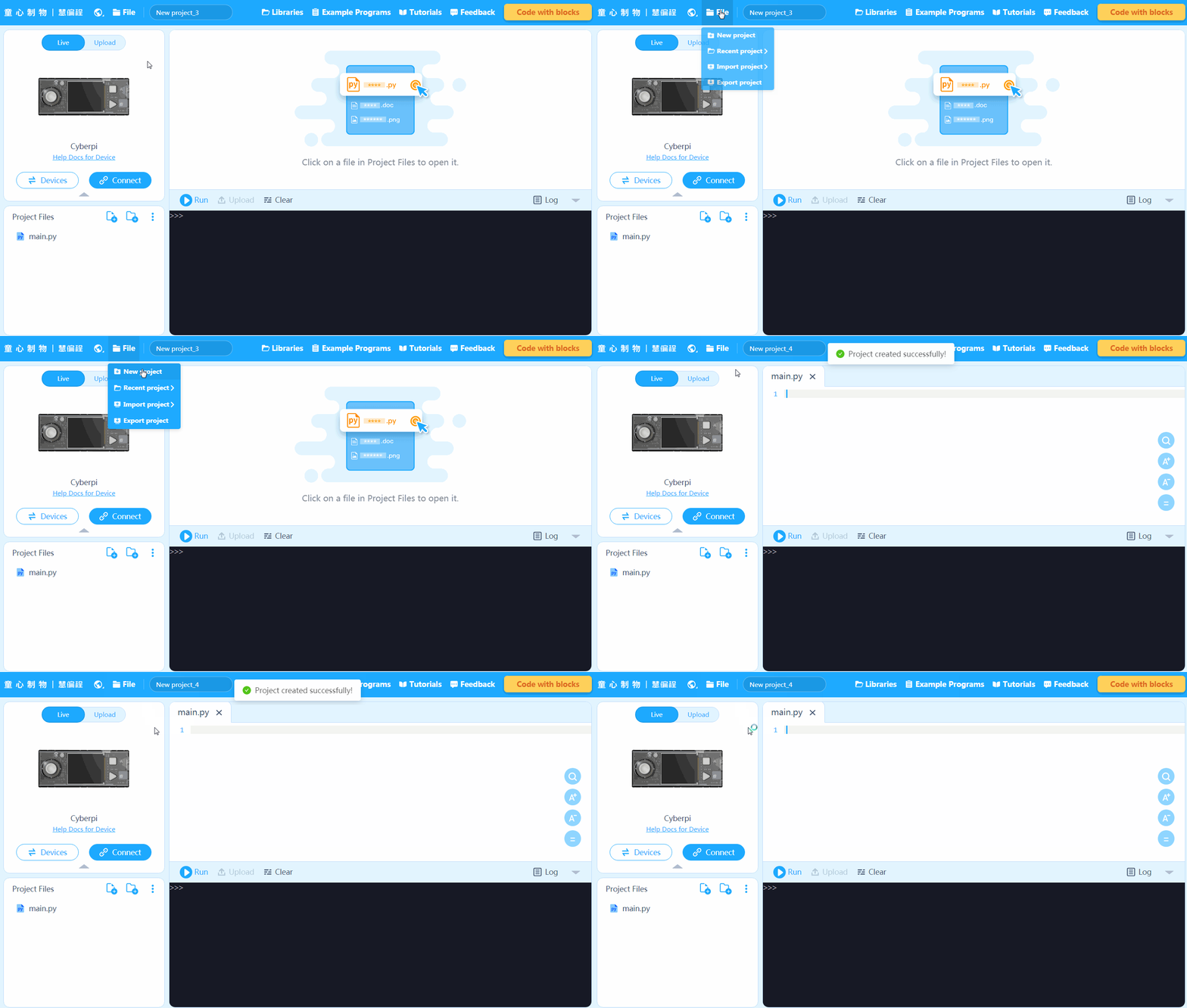
3. Enter a name for the created folder in the text input box on the toolbar
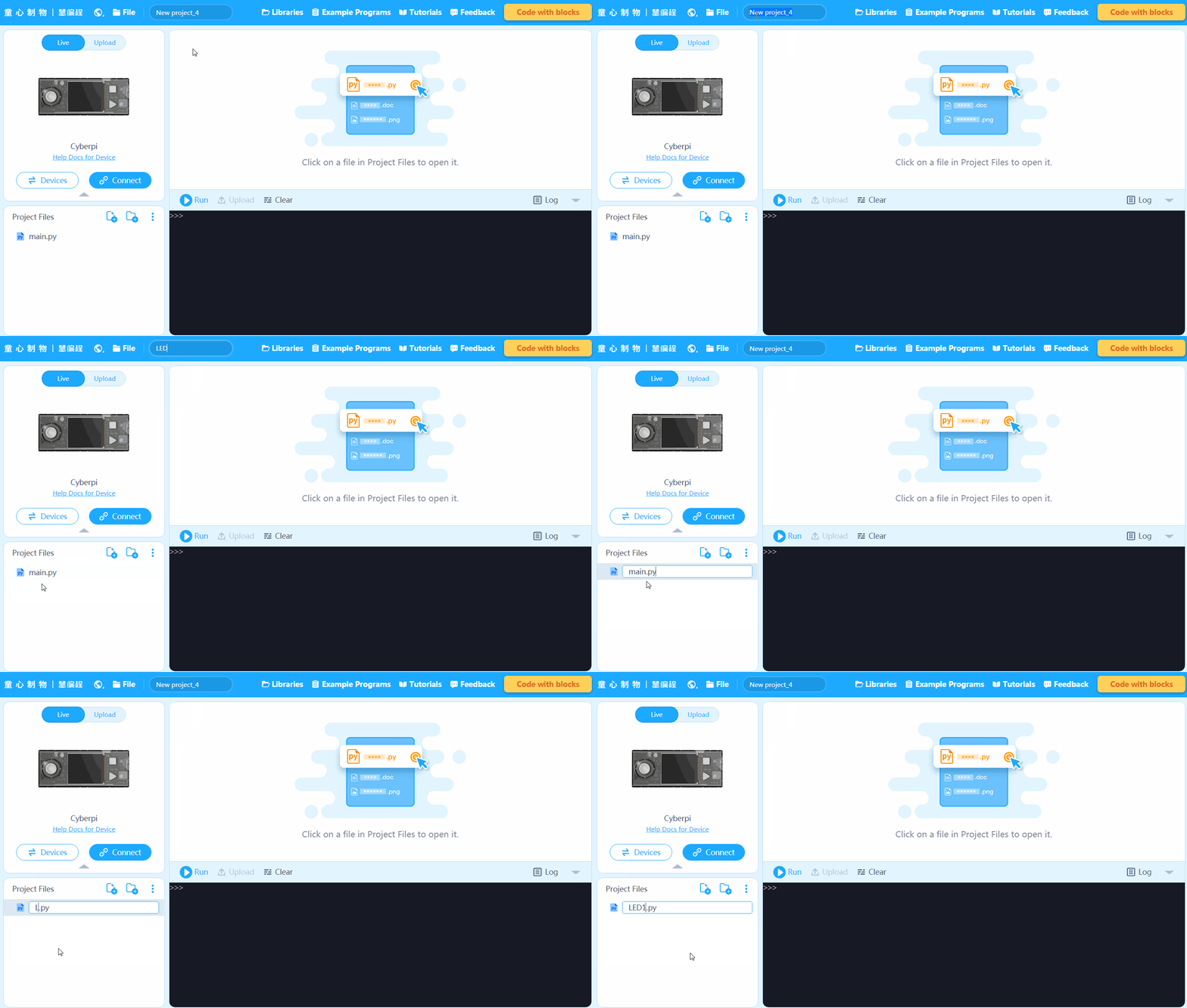
4. Now you begin your code. The code is automatically saved.
5. You can create more python files inside your project by clicking New .py file
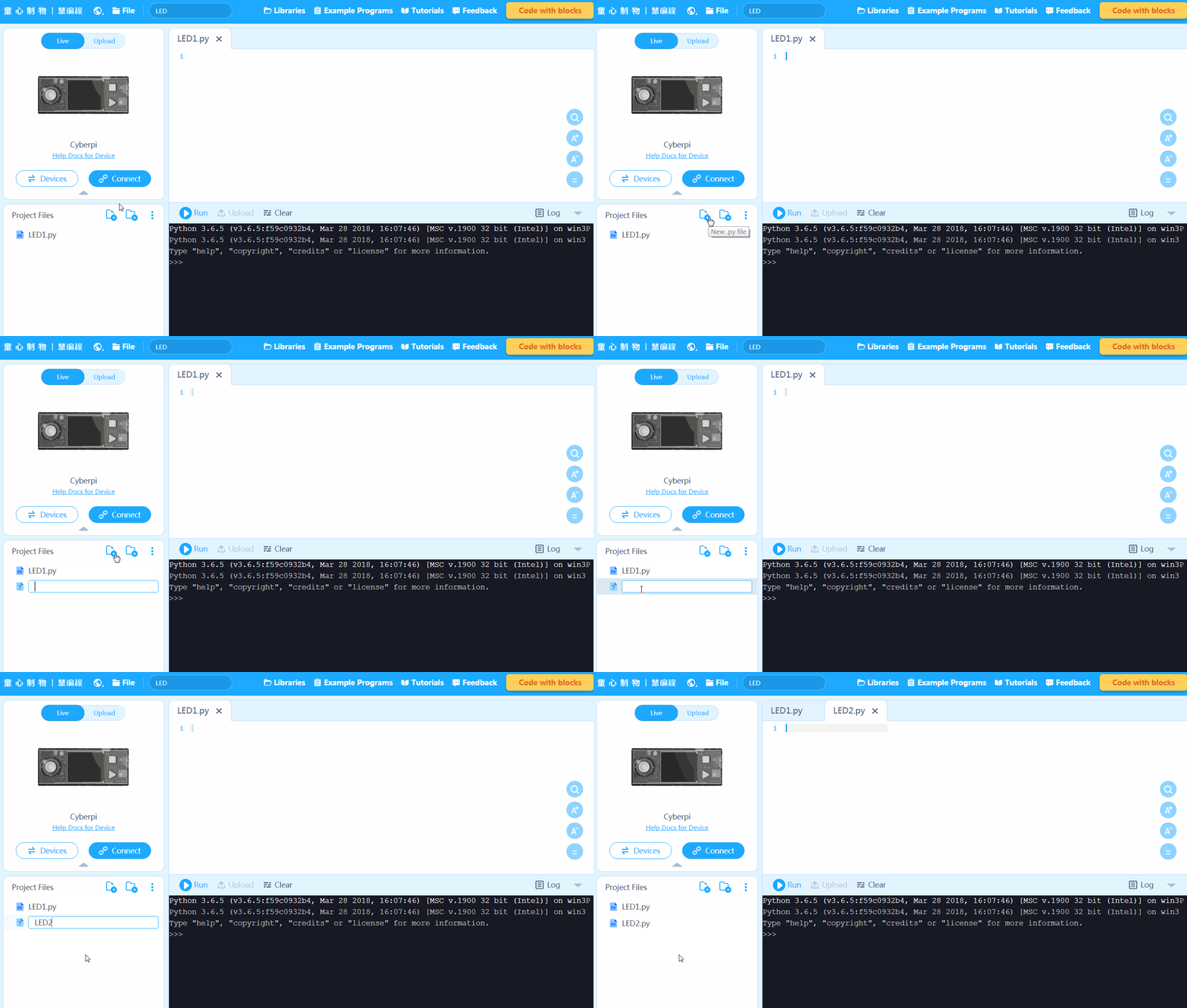
6. You can also click New file folder to create a folder for managing project files, then putting a file into or taking one out of the folder by dragging and dropping it.
7. The final step is to export your new file and saving it to one of your directories. Go File -> Export then name your file with the extension .mCode and save it to a directory of your choosing
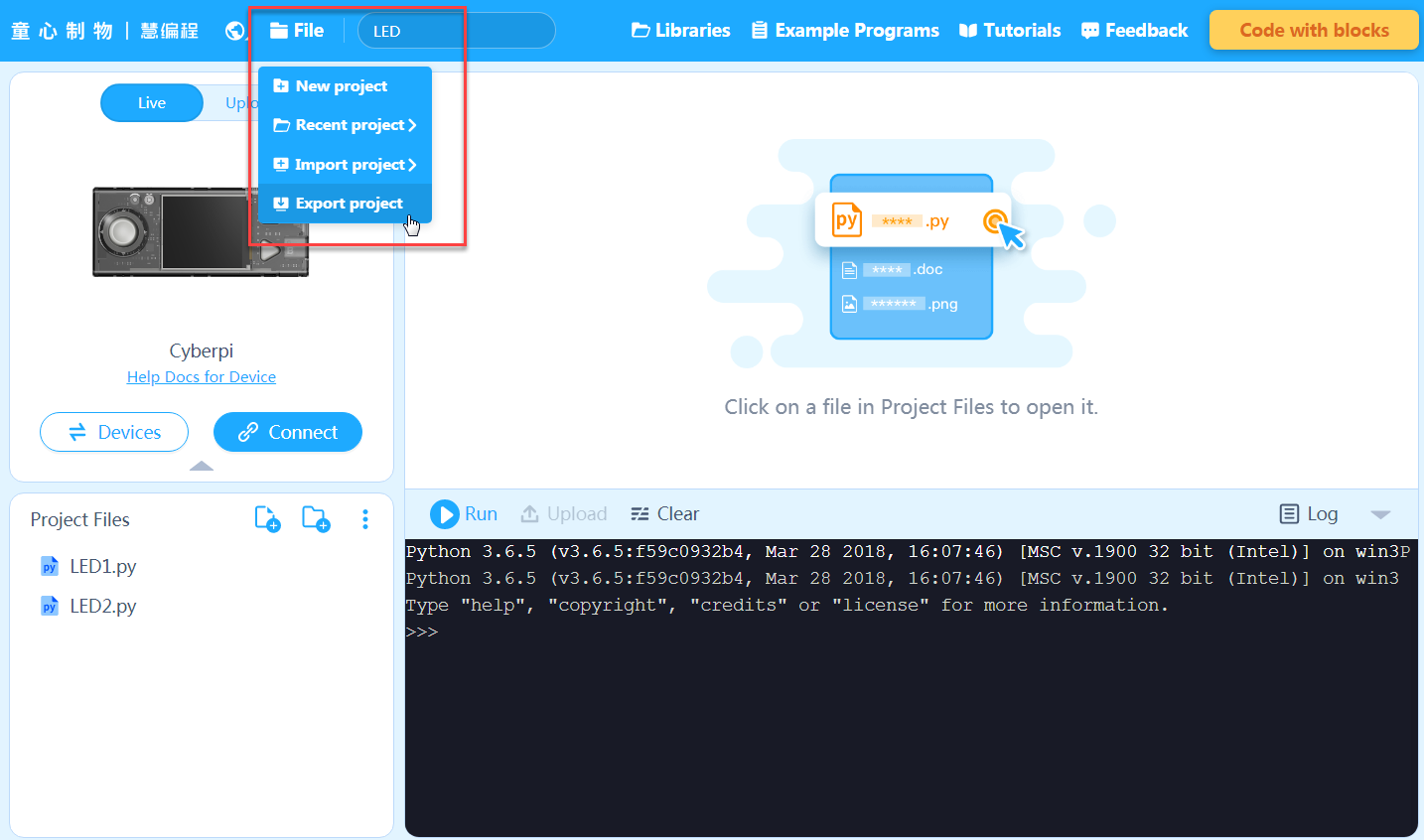
1. File -> Recent Projects
2. To import downloaded projects go File -> Import Project
3. Once you import a file, feel free to export it as shown above in step 7
Note: You can't import a single .py file. To import a .py file, you need to put it into a folder first and then import the whole folder.
1. Explain: What is Python?
Answer: Python is an interpreted, high-level and general-purpose programming language. It is designed to be easily readable. It helps programmers write clear and logical code using syntax that closely resembles the English language structure.
2. Show students examples of python code and have them try to understand what functions the code completes. Demonstrate the human-readable feature of Python code.
3. Introduce the layout of the mBlock Python editor. It has five main areas:
Navigation Bar, Device Management Area, Projects Management Area, Editing Area, and Console
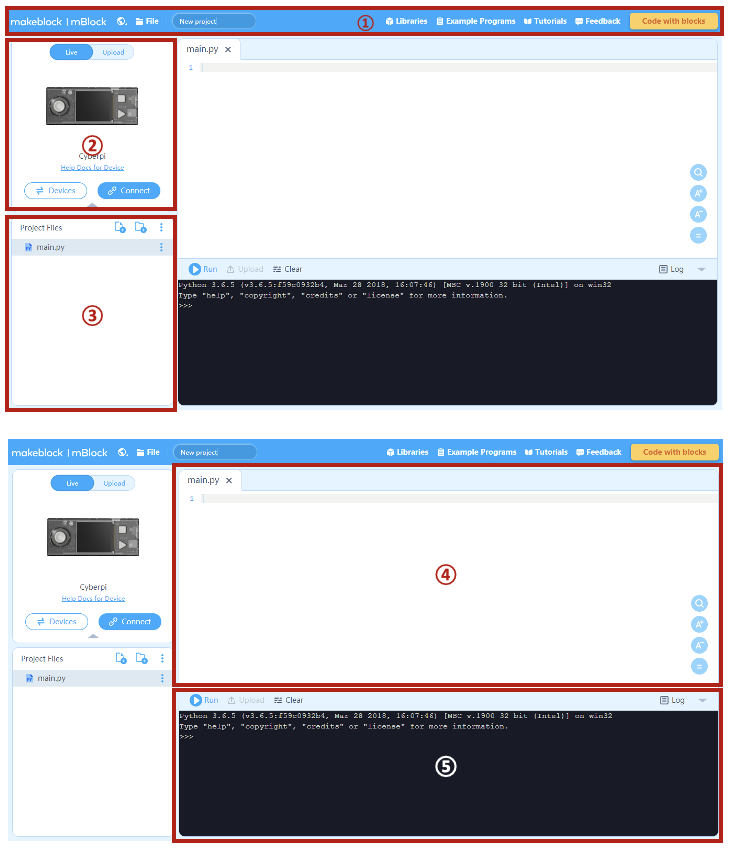
4. Instruct students to click on Tutorials and select Quick Start Guide in the menu. Have them walk through the layout of the mBlock Python editor.
5. To get students excited, Run the "hellomakeblock.py" file in the Example Program section of this lesson.
6. Encourage students that they will be able to create complex codes such as this one by the end of the course.
1. Open the mBlock software or mBlock 5 Web version.
2. Introduce students to the following key areas of the software interface:
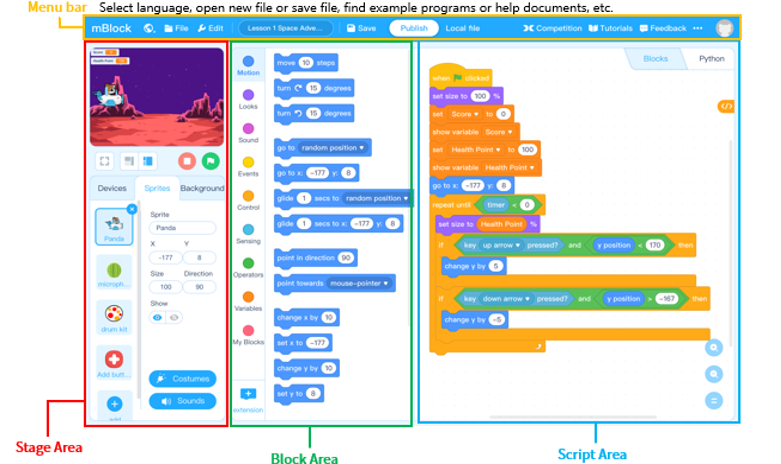
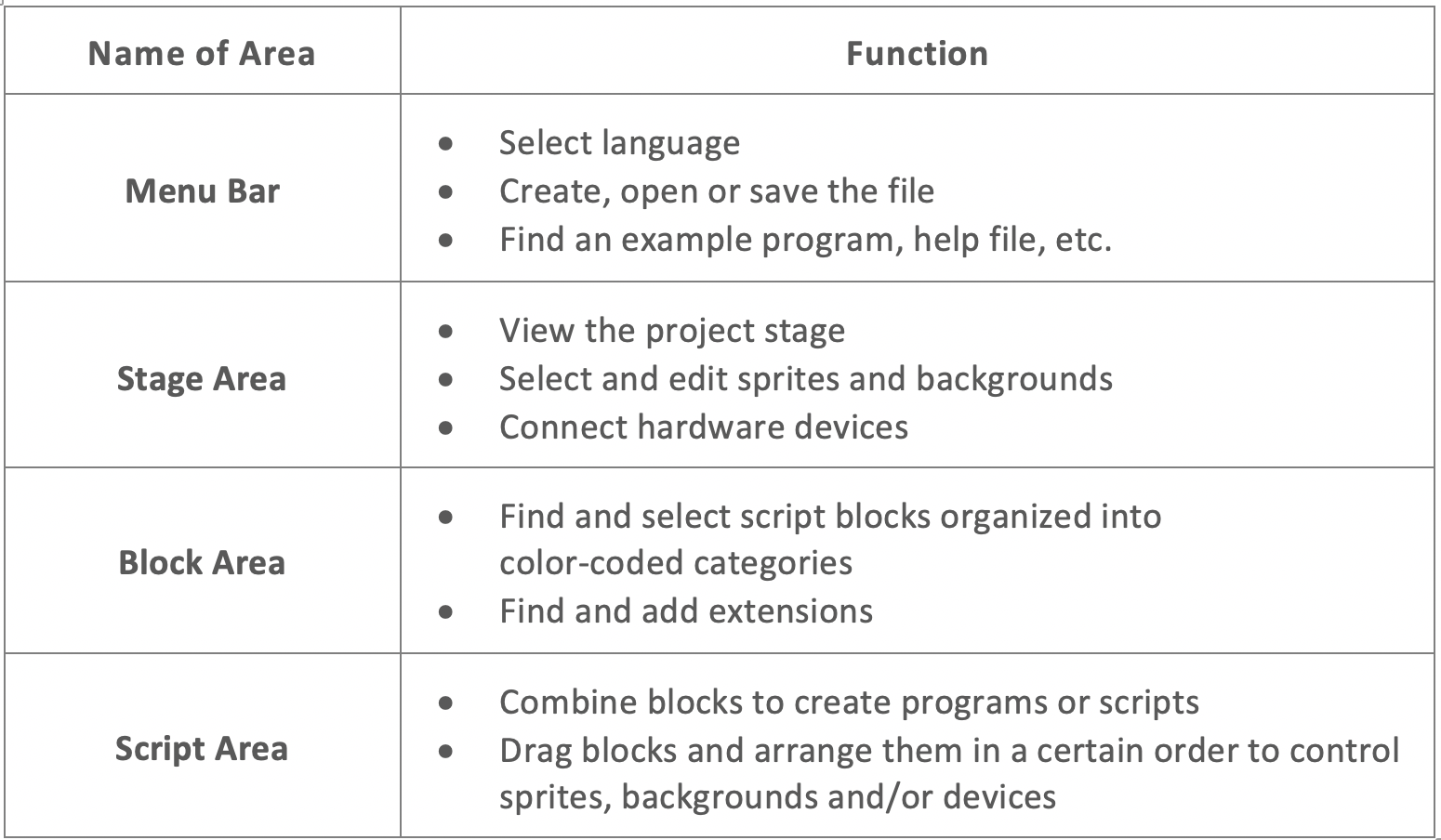
3. When you open the editor for the first time you will see these explanations mapping the interface. Encourage students to thoroughly read through it. Below are the screen captures if you ever need to reference them again.
Figure 1: To connect your CyperPi
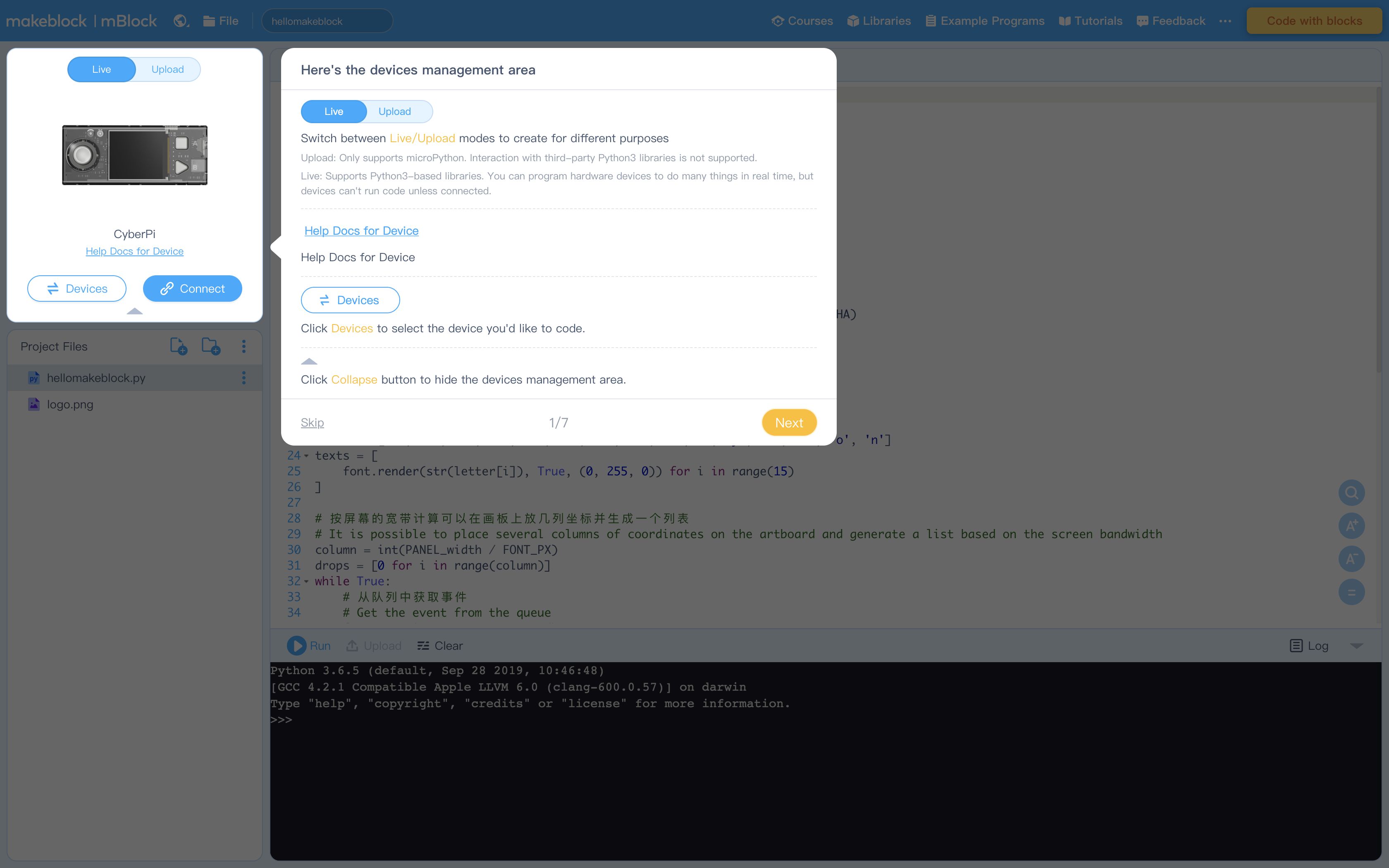
Figure 2: Creating Projects and Project files (see How to Create, Open, Import, or Export Project Files)
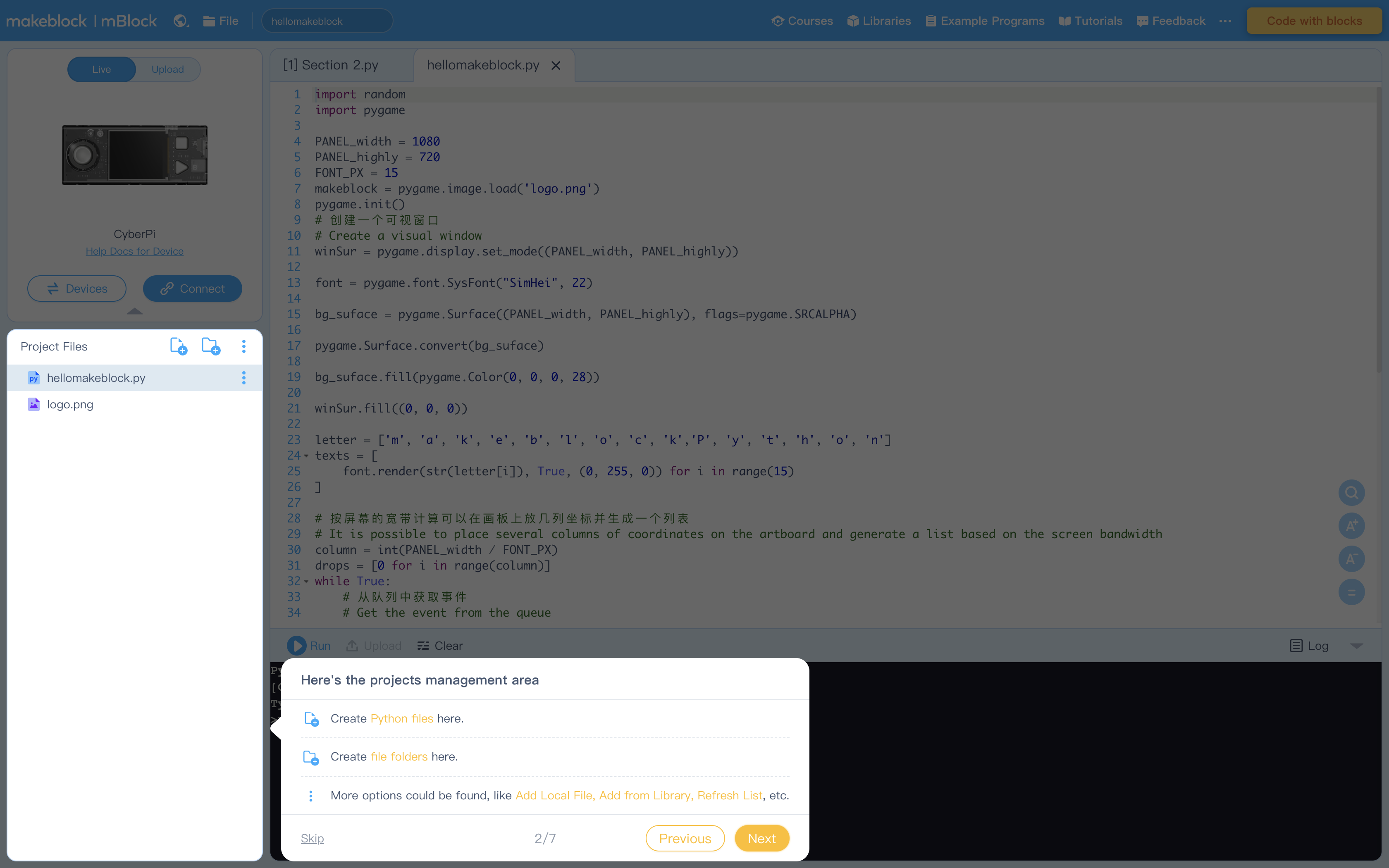
Figure 3: Editing Area
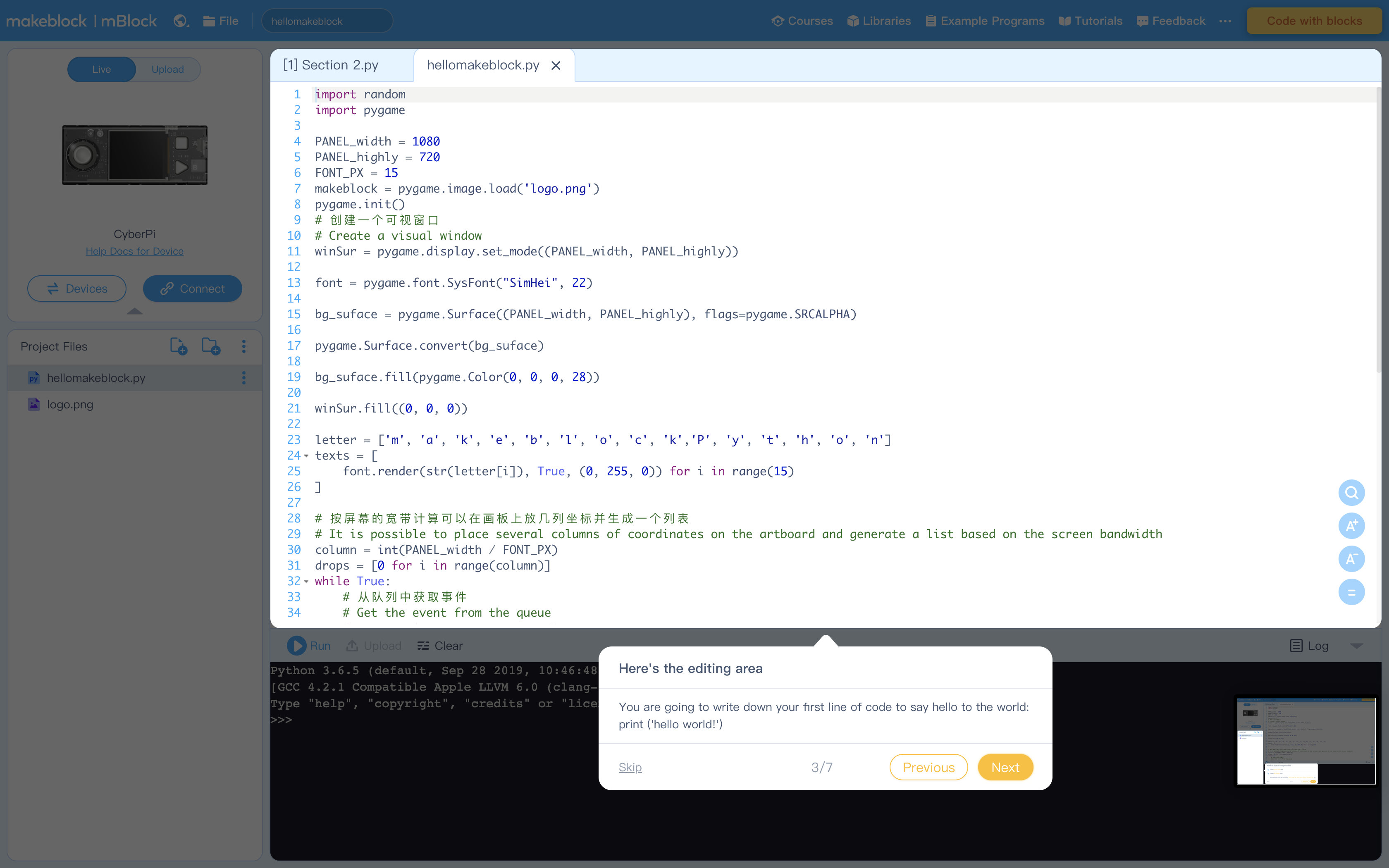
Figure 4: Console Commands to run code and more
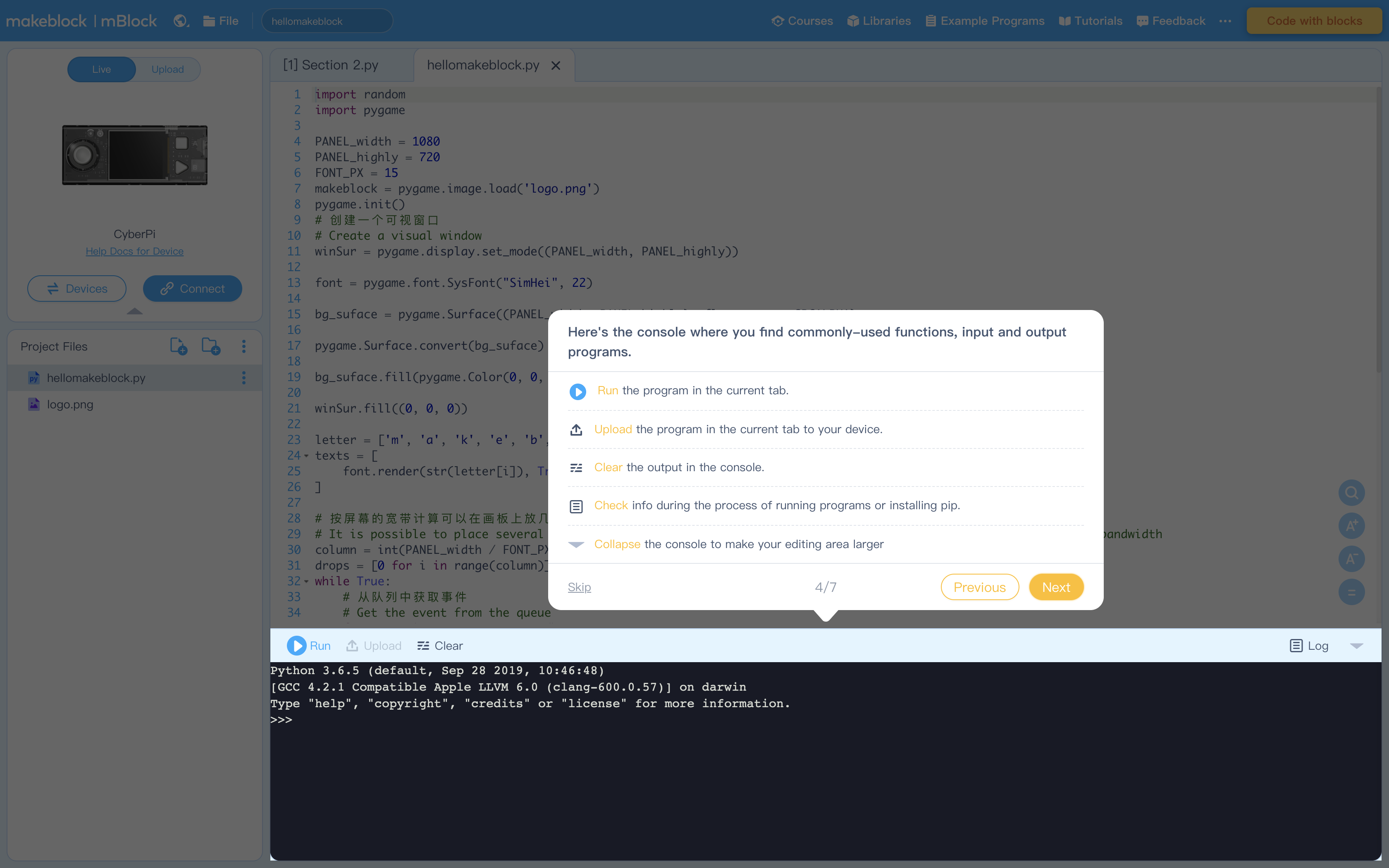
Figure 5: Terminal (Console) to display output from Editing Area
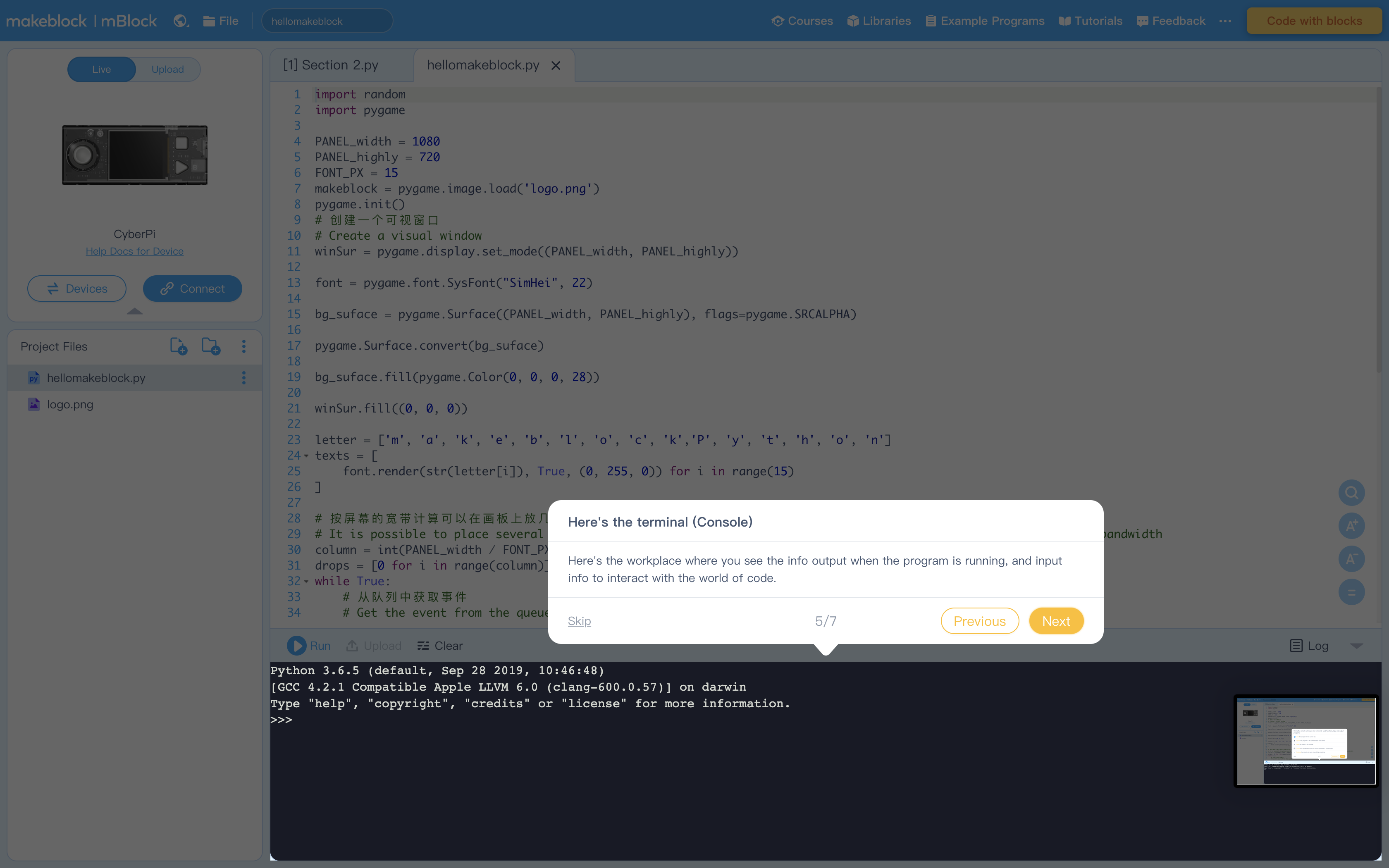
Figure 6: Libraries containing example program. Feel free to explore these at your leisure
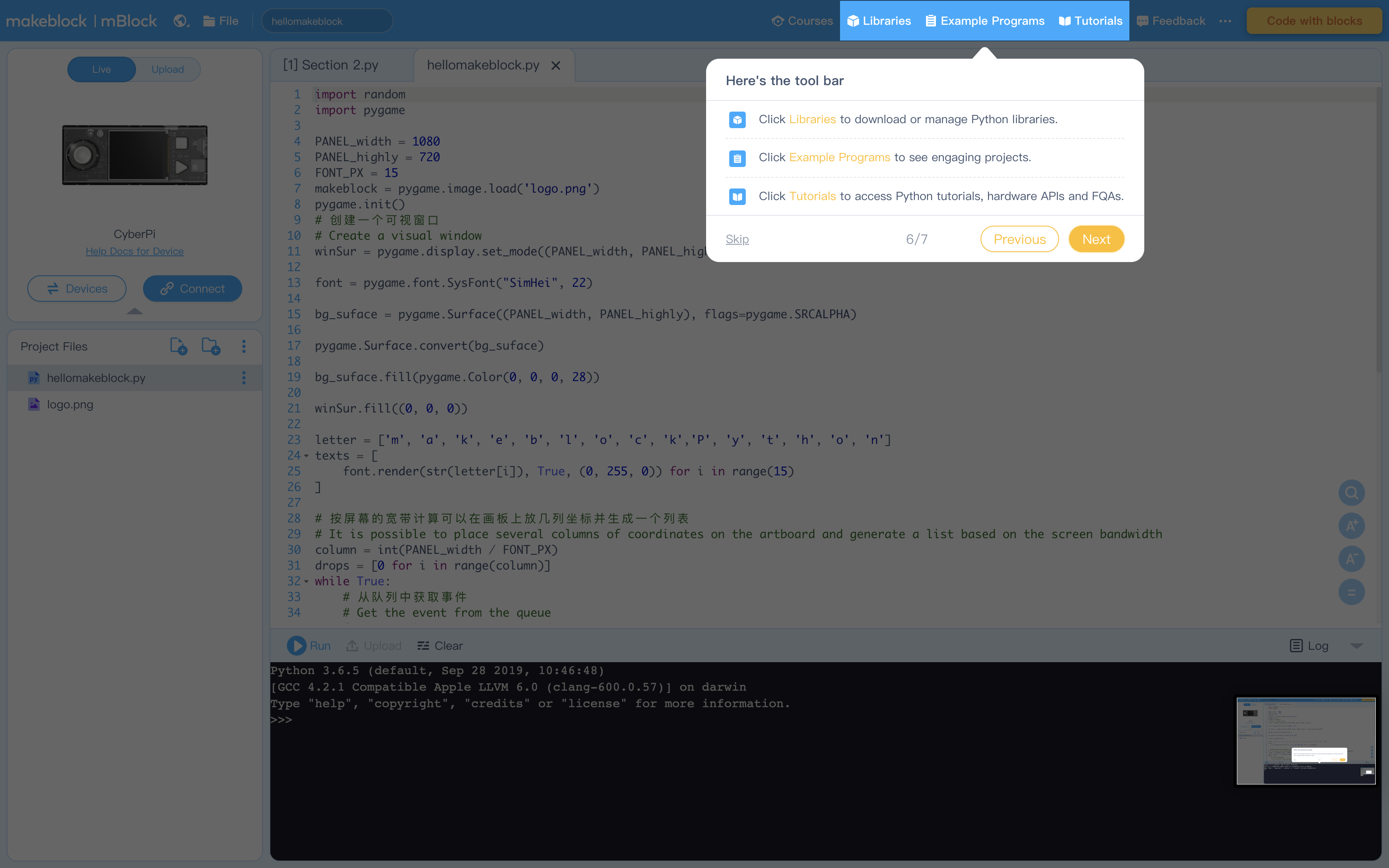
Figure 7: Click "Tutorials" to view these helpful instructions anytime
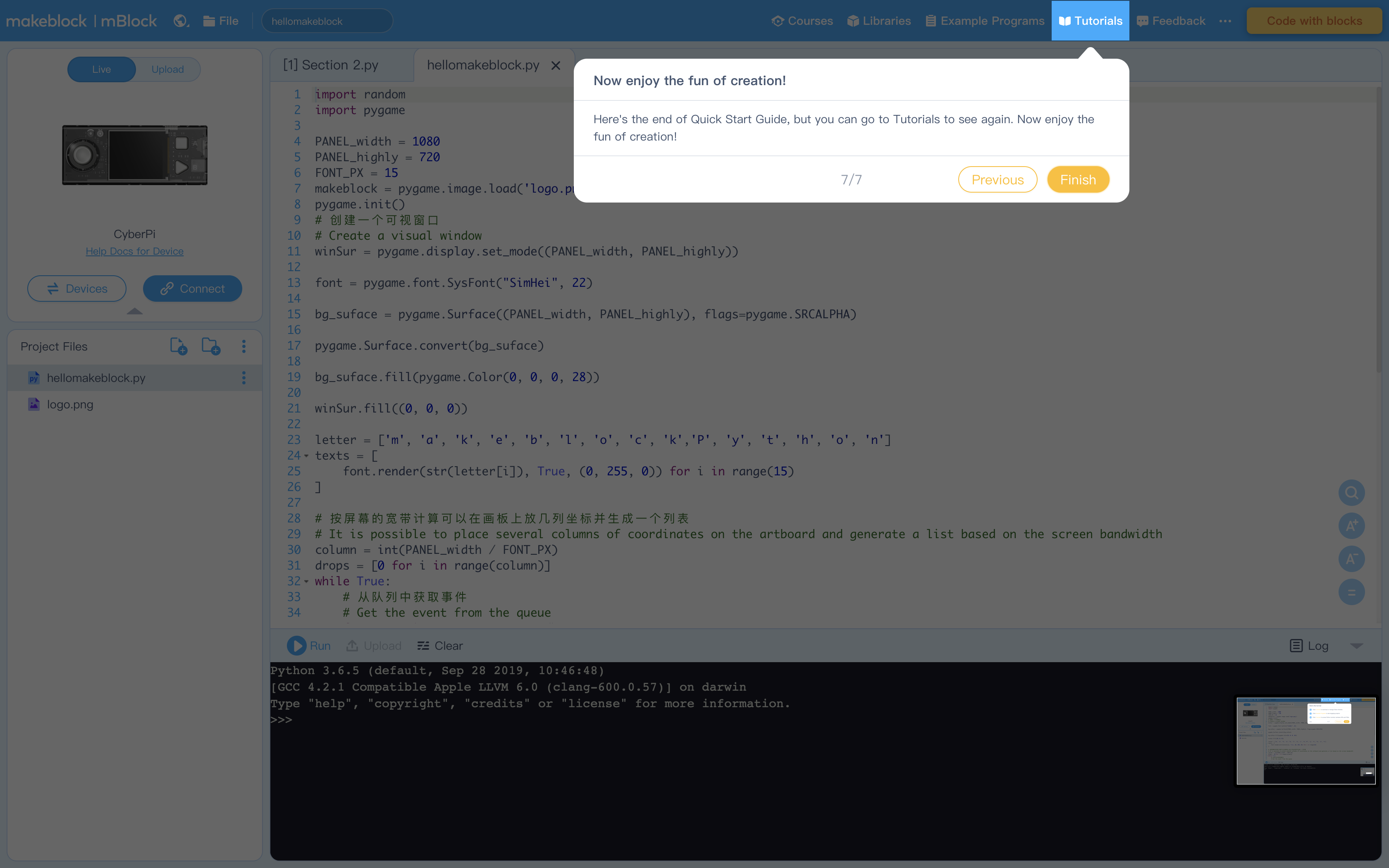
1. Instruct students to enter the mBlock Python editor and write code to introduce their names.
Instruct students to use the print() function and write the code. Ask them to pay attention to the use of double quotes (") or single quotes (').
Here is an example: print("My name is Anthony").
2. Click Run and demonstrate the command being printed into the Console.
3. Ask students to write another code to ask a question – for example, "What’s your name?".
Click Run and demonstrate the command being printed into the Console.
Remind students that they could click Clear to delete the previous content.
4. Add a third line answering the question above.
The final output should look something like this:
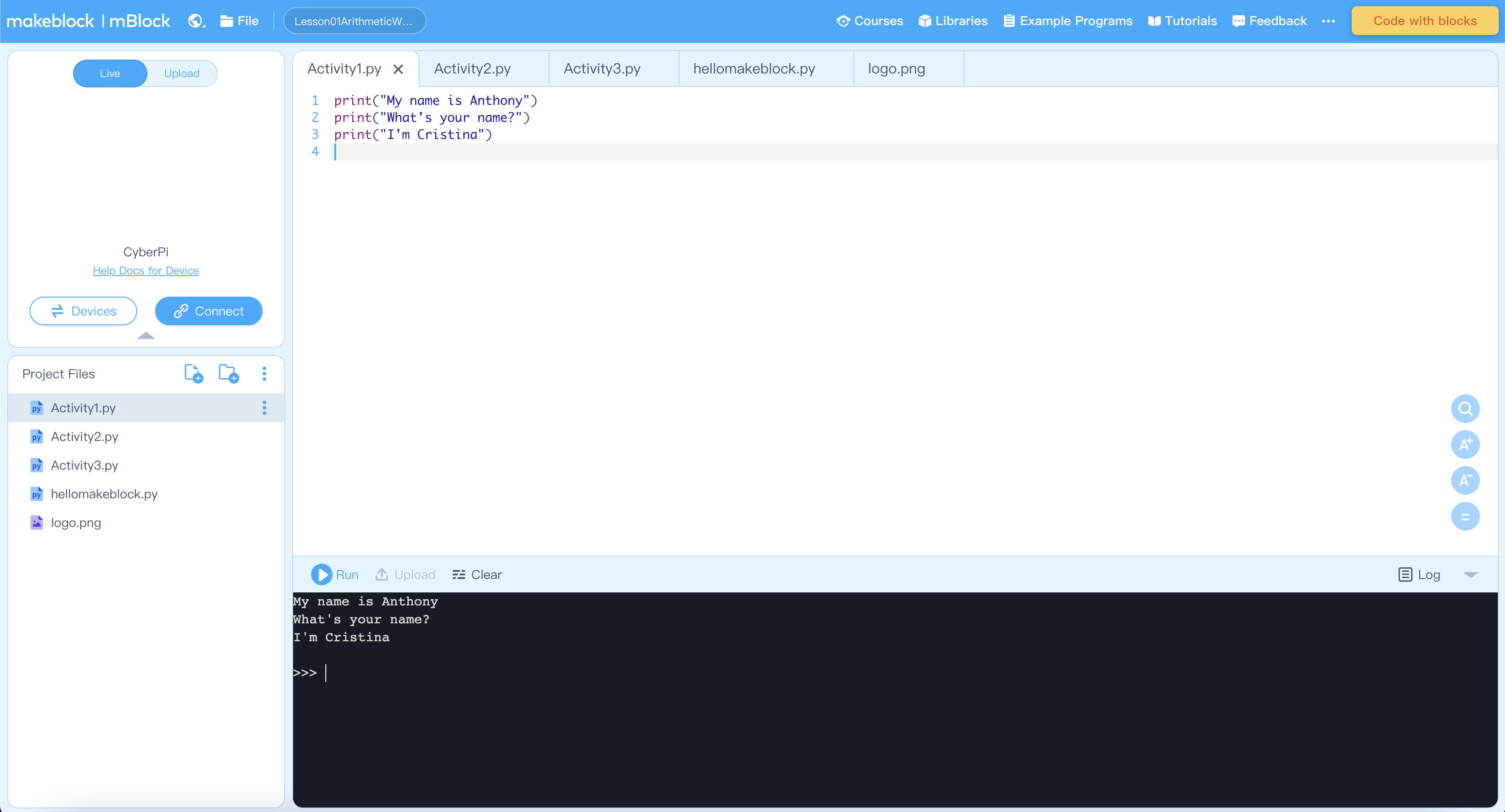
Note: Each statement is printed on a separate line
1. Introduce the common arithmetic operators in Python:
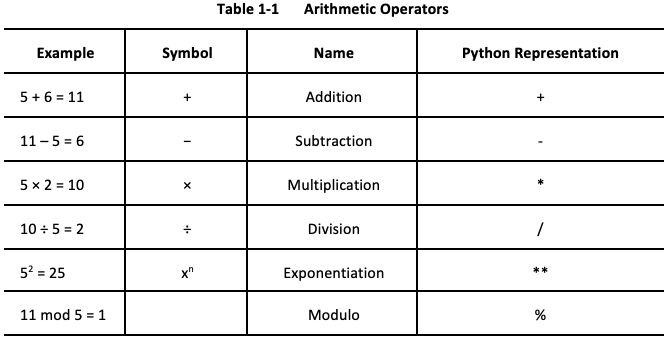
2. Have students implement the math equations above into python. They can do this using the print() command.
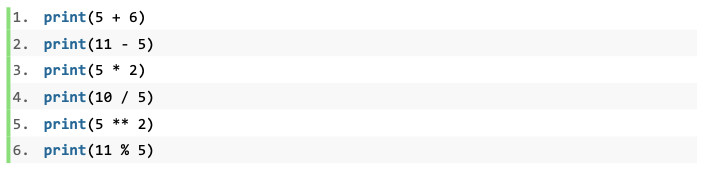
Create a few math equations and have students try to implement those
Be creative and have students explore how Python follows the mathematic rules of BEDMAS
Problem: Suppose your current computing skill level is 100. If you spend 1 hour per day practicing, your skill level will increase by 1%. For example, on Day 1, the increase is 100 × 0.01 = 1, so your new skill level would be 100 × 1.01 = 101. On Day 2, you also practice Python for 1 hour so you improve another 1% , which means it would be 101 × 1.01 = 102.01.
Create the Python code to calculate the level of your computing skills if you keep doing this for 7 days. What will happen after 180 days (and 365 days)?

Explain: What is compound interest? Invite students to use Python to solve a compound interest problem, for example:
Problem: Suppose you deposit $100 for 2 years in a bank account. The deposit interest rate is 0.01% and the interest is compounded monthly.
How much will you get after 1 month, 6 months, 1 year, and 2 years?
Use Python to calculate your balance and see how much you can earn.
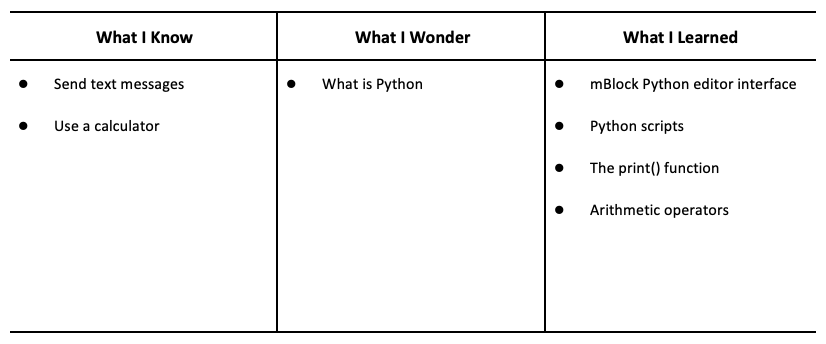
Provide students directions to fill in worksheet for "What I know", "What I Wonder"...
Have students research compound interest products at a bank (or any financial institution). Ask students to calculate the interest through Python and see how compound interest works.
Review the layout of the mBlock Python editor. Reiterate that students can write code in the Editing Area and when they run a program, the result will be shown in Console.
Review the use of the ‘print()’ function. Highlight the difference between the print(“My name is Anthony”) and the print(5+6).
If the print() function handles the text, it should contain a pair of double or single quotes; if the function processes the numerical data, there is no need to add the quotes.
Algebra
C2.2 create code by decomposing situations into computational steps in order to represent mathematical concepts and relationships, and to solve problems
B1: ICS20 Arithmetic Operations
B1.1 use correct terminology to describe programming concepts
B1.2 describe the types of data that computers can process and store
B3.1 write clear and maintainable code using proper programming standards