Loading…
Loading…
Cue

Sketch Kit

Cue robots (1 per group)
tablets or compatible devices (1 per group)
markers
pencils
[Optional] Sketch Kit marker attachment (1–2 per class)
[Optional] Sketch Kit dry erase markers (1–2 sets per class)
[Optional] Wonder Whiteboard Mat and/or butcher paper (1–2 per class)[Optional] materials to create a drawing attachment, if Sketch Kit unavailable (e.g., cardboard sheets and rolls, pipe cleaners, foam packing, tape, rubber bands, paper clips, etc.)
projector or interactive display with mirroring capability
Before this lesson, it is recommended that students:
Complete all previous lessons in Unit 1.
Fully charge the devices and robots.
Ensure that the Wonder Workshop Cue app is installed and updated on each device.
Set up a station with a Whiteboard Mat and/or butcher paper, Sketch Kit marker attachments, and Sketch Kit dry erase markers. If Sketch Kit is unavailable, lay out materials to create a drawing attachment and markers.
1. Project the Computing Process Slides.
Refer to Slide 3.
2. Have students volunteer to summarize each step in the process. Encourage students to emphasize what components of Cue are involved in each step.
For example, have them identify that the tablet is involved in Computation and the proximity sensors are involved in Perception.
2. Ask, “What physical component is required for the computation in the Perception-Computation-Action cycle? What is one way in which that component could fail?”
Sample response: “The tablet performs the computation in the Perception-Computation-Action cycle. It could fail if the bluetooth is disconnected.”
3. Ask, “What aspects of your creative writing project could benefit from using commands from the Events menu? How could events aid your project?”
Sample response: “We can consider what items the robot could perceive or how to use perception to automate some of Cue’s actions. For example, when the robot hears clapping, it could spin!”
1. Ask, “Which blocks are used check for events such as obstacles detected or button presses?”
Sample response: “When blocks from the Events menu.”
2. Ask, “How does this block work to continuously check its surroundings using sensors?”
Sample response: “This block is not connected to a start block, and when detected, interrupts all other sequences of code.”
3. Ask, “How are the same tasks achieved in JavaScript?”
Sample response: “In JavaScript, you can find different types of events by first typing 'events.' You first pick the input type. Then, in the parentheses, you can list the specific button or obstacle and also the state.”
4. Ask, “What are the similarities and differences between blocks and text?”
Sample response: “New When blocks are not connected to the start block, just like new methods in text are not within the main function. In Block-based code, there are When blocks and Wait blocks that correspond to different methods of the events object. However, in JavaScript, you must write out the specific input and button/obstacle type before listing the program that will start when that event occurs.”
5. Go through each block in the Events menu and make sure that the students know the corresponding JavaScript code. Ensure that they can point out methods and objects within the JavaScript text.
If you have completed Code.org’s Innovations in Computing lesson with your class, review the lesson by asking the following question:
“What were some differences between the hardware and the software of the devices you researched? How did the hardware and software of the devices work together?”
1. Say, “A computing system is composed of hardware and software. Hardware consists of physical components, such as a tablet or a robot. Software is digital and not physical. It consists of the programs and operating systems that help control the hardware. You need both hardware and software to make things happen!”
Ask the students to identify some computing systems that are available in their everyday lives. Encourage them to point out which parts are hardware and which parts are software. For example, a computer’s mouse or keyboard is hardware, while the programs that transform interactions with this hardware into actions on the screen are software.
Ask them to consider common devices, such as microwaves, ovens, and radios, and discuss why they are or are not computing systems. Do they lack software components? For example, a radio has a dial to change the station, but this is done through circuits rather than software.
2. Ask, “How does Cue receive data from the tablet? How does the tablet receive input from the sensor on Cue?”
Sample response: “Messages are sent back and forth using bluetooth. Bluetooth is used to send instructions from the code on the tablet to Cue and from sensor readings from Cue to the tablet.”
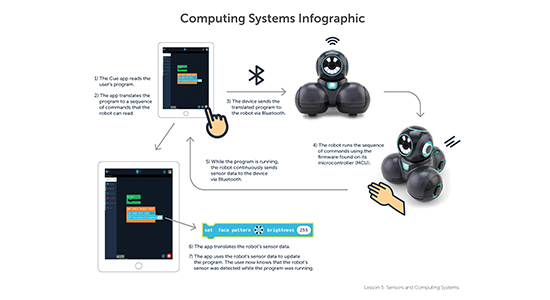
3. Project the Computing Systems Infographic and use it to outline the steps involved in sending data back and forth from the tablet to Cue.
Say, “The full computing process uses both translation and transmission steps. The translation steps are used to translate programs into actions or translate sensor data so that it can be read by a program. The transmission steps are used to send signals from the tablet to Cue or vice versa”
4. Have student volunteers come up to act out different parts in a computing system skit. Six volunteers are needed for the following roles: the user, the tablet, bluetooth, Cue, the sensor and the microcontroller.
Have the students act out the different stages shown in the computing systems image.
Have the students repeat specific stages in random order without the actors speaking any words, and have the rest of the class guess which stage of the cycle their classmates are acting out.
1. Ask, “What is a computing system?” (Sample response: “A computing system is composed of hardware and software. Hardware components are physical, like a tablet. Software components are the digital components that control the hardware, such as the microcontroller.”)
2. Ask, “How do Cue and the tablet communicate?” (Sample response: “Cue and the tablet send each other messages using bluetooth.”)
1. Project your device screen, open the Cue app, and start a new program in the Code with Wonder section.
2. Create two new Groups.
Have a student volunteer determine what happens in the first group. Have another student pick a distinct action for the second group.
For example, if the first student creates a group that drives straight, have the second student create a group that changes eye color and tilts the robot’s head.
3. Next, add a transition arrow linking the start block to each group.
For each transition, click on the arrow to add a condition between groups. Have each students select from the basic conditions, such as pressing a button.
Run the program.
4. Next, have a volunteer come up and replace the previous code with a reaction group.
Say, “In the reaction group, you can change an aspect of the robot and what it is controlled by. Multiple reactions can be added in the same block and this can create complex movements.”
5. Ask, “What are some differences between events in Block & JavaScript and Wonder?”
Sample response: “In Block & JavaScript, When blocks are not attached to anything, and the event is constantly checked. In Wonder, events are used to connect different groups to each other.”
Discuss the four groups of basic events found in Wonder. Compare and contrast the capabilities of the events in Wonder with that of Block & JavaScript. Were some capabilities not possible in Block & JavaScript?
6. Ask, “Which programming paradigm do you prefer, Wonder or Block & JavaScript? Why?”
Sample response: “In Wonder, it is easier to visualize pathways. For example, each path is labelled with a condition, so it is easier to map out my thoughts.”
Lead a discussion about the different ways each paradigm allows you to think about sensors and events.
Ask, “How are events different in Wonder and Block & JavaScript?” (Sample response: “In Block & JavaScript, sensors were modelled as If blocks in the Events menu. In Wonder, the different events are found by clicking on the pathways between groups.”)
Have students work on the following activities in small groups (ideally 2 students per robot). Provide each group with a device and a robot.
Encourage students to share device and robot time. Have them establish and rotate through roles such as:
Lead Programmer: Holds the device and manipulates the code.
Robot Wrangler: Retrieves and resets the robot after every program attempt.
When students work together while coding, they’re able to help each other identify mistakes and develop creative solutions!
Have students navigate to the Code with Wonder section of the app.
For Chromebook/Microsoft platforms, have students go to the Challenges section and try the Wonder examples in the Sense section.
For iOS/Android platforms, have students go to the Examples section and try the following examples:
Button Geometry
Sensor Shield Test
1. In their Unit 1 Design Process Notebooks, have student groups turn to Activity Menu: Sense on pages 19–20.
2. Have students select an activity to complete.
Tell students that they can choose to complete the activity using Block, JavaScript, or Wonder.
Have students use the space provided under PLAN & BUILD on page 21 of their Notebooks to plan out their solutions.
Encourage students to draw diagrams and list steps before they begin coding.
After coding and implementing their programs, have students use the space under TEST & RECORD on page 22 to record their results.
If there’s time, have students complete additional activities from the Activity Menu and record their results under ADDITIONAL ACTIVITIES on page 23.
Have students write about their reflections on their experience under REFLECT on page 24.
1. Have student groups take turns sharing one of their programs with the class. Encourage them to:
Explain which coding method they used for programming and why they selected that tool. They should demonstrate what they intended their robot to do, as well as the events they incorporated into their programs. They should also indicate how the coding method they used helped them achieve their goal. (E.g., “We used JavaScript because it included several methods that were not available in Wonder- or Block-based code. ”)
Share any obstacles and difficulties they overcame during the activity. (E.g., “Sometimes we used a property instead of a method, and this caused our code to not run.”)
2. Encourage students to ask each other which coding methods were the most effective for the activities they chose and offer each other feedback on their programs. Possible questions/feedback includes:
“Why did you (use JavaScript when Wonder has the same capabilities)?”
“I like how you (incorporated lots of different events to imitate complex behaviors).”
“What if you (used Block programming instead of Wonder)?
Use the Evaluation Rubric below to review students’ work and presentations.
CCSS.Math.Content.7.G.A.2: Draw (freehand, with ruler and protractor, and with technology) geometric shapes with given conditions. Focus on constructing triangles from three measures of angles or sides, noticing when the conditions determine a unique triangle, more than one triangle, or no triangle.
CCSS.Math.Content.7.G.A.1: Solve problems involving scale drawings of geometric figures, including computing actual lengths and areas from a scale drawing and reproducing a scale drawing at a different scale.
CCSS.ELA-Literacy.SL.6.1.c: Pose and respond to specific questions with elaboration and detail by making comments that contribute to the topic, text, or issue under discussion.
CCSS.ELA-Literacy.SL.6.4: Present claims and findings, sequencing ideas logically and using pertinent descriptions, facts, and details to accentuate main ideas or themes; use appropriate eye contact, adequate volume, and clear pronunciation.
1B-AP-17: Describe choices made during program development using code comments, presentations, and demonstrations.
2-AP-17: Systematically test and refine programs using a range of test cases.
1B-AP-13: Use an iterative process to plan the development of a program by including others' perspectives and considering user preferences.
1B-AP-15: Test and debug (identify and fix errors) a program or algorithm to ensure it runs as intended.
1B-CS-02: Model how computer hardware and software work together as a system to accomplish tasks.
2-AP-15: Seek and incorporate feedback from team members and users to refine a solution that meets user needs.
1B-IC-20: Seek diverse perspectives for the purpose of improving computational artifacts.
1B-CS-01: Describe how internal and external parts of computing devices function to form a system.
2-AP-13: Decompose problems and subproblems into parts to facilitate the design, implementation, and review of programs.
1B-AP-16: Take on varying roles, with teacher guidance, when collaborating with peers during the design, implementation, and review stages of program development.
2-AP-19: Document programs in order to make them easier to follow, test, and debug.
6b: Create original works or responsibly repurpose or remix digital resources into new creations.
7c: Contribute constructively to project teams, assuming various roles and responsibilities to work effectively toward a common goal.
4d: Exhibit a tolerance for ambiguity, perseverance, and the capacity to work with open-ended problems.
6c: Communicate complex ideas clearly and effectively by creating or using a variety of digital objects such as visualizations, models, or simulations.
MS-ETS1-3: Analyze data from tests to determine similarities and differences among several design solutions to identify the best characteristics of each that can be combined into a new solution to better meet the criteria for success.
3-5-ETS1-2: At whatever stage, communicating with peers about proposed solutions is an important part of the design process, and shared ideas can lead to improved designs.
Measurement
E2.4 explain how protractors work, use them to measure and construct angles up to 180°, and use benchmark angles to estimate the size of other angles
Algebra
C3.1 solve problems and create computational representations of mathematical situations by writing and executing code, including code that involves conditional statements and other control structures.
Speaking & Listening
- 2.2 demonstrate an understanding of appropriate speaking behaviour in a variety of situations, including paired sharing, dialogue, and small and large group discussions.
- 2.7 use a variety of appropriate visual aids to support or enhance oral presentations.
Reading
- 3.1 automatically read and understand most words in common use.
- 3.2 predict the meaning of and rapidly solve unfamiliar words using different types of cues.
Writing
- 1.6 determine whether the ideas and information they have gathered are relevant, appropriate, and adequate for the purpose, and do more research if necessary.
- 2.2 establish an appropriate voice in their writing, with a focus on modifying language and tone to suit different circumstances or audiences.
Algebra
C3.1 solve problems and create computational representations of mathematical situations by writing and executing code, including code that involves conditional statements and other control structures
- identify 90° angles.
- design and construct different rectangles, given either perimeter or area, or both (whole numbers), and make generalizations.
- Present information: organize ideas and information in presentations to maintain a clear focus and engage the audience and purpose.
- Enhance presentation: use effective openings and closings that attract and sustain reader or audience interest and enjoyment.
- Use effective oral and visual communication: adjust volume, tone of voice and gestures to engage the audience; arrange presentation space to focus audience attention.
- Demonstrate attentive listening and viewing: identify and interpret the purpose of verbal and nonverbal messages and the perspectives of the presenter, show respect for the presenter's opinions by listening politely and providing thoughtful feedback.
- Cooperate with others: accept and take responsibility for fulfilling own role as a group member discuss and decide whether to work individually or collaboratively to achieve specific goals.
- Work in groups: formulate questions to guide research or investigations, with attention to specific audiences and purposes contribute ideas to help solve problems, and listen and respond constructively.
- Evaluate group process: show appreciation for the contributions of others, and offer constructive feedback to group members.
CTF is planning, creating, appraising and communicating in response to challenges.
I plan in response to challenges.
I make decisions in response to challenges.
I adapt to change and unexpected events.
I solve problems in response to challenges.
I create products, performances or services in response to challenges.
I appraise the skills, knowledge and technologies used to respond to challenges.
I communicate my learning.
CTF is working independently and with others while exploring careers and technology.
I determine how my actions affect learning.
I develop skills that support effective relationships.
I collaborate to achieve common goals.
Curricular Competencies:
- Use technology to explore mathematics.
- Develop, demonstrate, and apply mathematical understanding through play, inquiry, and problem solving.
- Develop and use multiple strategies to engage in problem solving.
Curricular Competencies:
- Exchange ideas and perspectives to build shared understanding.
- Use writing and design processes to plan, develop, and create texts for a variety of purposes and audiences.
- Use language in creative and playful ways to develop style.
Applied Skills
- Use materials, tools, and technologies in a safe manner, and with an awareness of the safety of others, in both physical and digital environments
- Identify the skills required for a task and develop those skills as needed
Applied Technologies
- Use familiar tools and technologies to extend their capabilities when completing a task
- Choose appropriate technologies to use for specific tasks
- Demonstrate a willingness to learn new technologies as needed
- SS7: Perform a single transformation (translation, rotation, or reflection) of a 2-D shape (with and without technology) and draw and describe the image.
- read a wide variety of words automatically, including content-specific words.
- make personal connections, relate relevant prior knowledge and make logical text-to-text comparisons.
- SS5.1 Design and construct different rectangles given either perimeter or area, or both (whole numbers), and draw conclusions.
- SS5.7 Identify, create, and analyze single transformations of 2-D shapes (with and without the use of technology).
- CC5.3 Speak to express and support a range of ideas and information in formal and informal speaking situations for particular audiences and purposes.
- AR5.1 Identify strengths in viewing, listening, reading, speaking, writing, and other forms of representing.
5SS1: Design and construct different rectangles, given either perimeter or area, or both (whole numbers), and draw conclusions
5SS7: Perform a single transformation (translation, rotation or reflection) of a 2-D shape, and draw and describe the image.
GCO1: Communicate information and ideas effectively and clearly, and to respond personally and critically
SS1 Design and construct different rectangles, given either perimeter or area, or both (whole numbers), and draw conclusions.
SS7 Perform a single transformation (translation, rotation, or reflection) of a 2-D shape (with and without technology) and draw and describe the image.
Speaking and Listening
communicate information and ideas effectively and clearly, and to respond personally and critically
5.SS.1 Design and construct different rectangles, given either perimeter or area, or both (whole numbers), and draw conclusions
5.SS.7 Perform a single transformation (translation, rotation, or reflection) of a 2-D shape and draw and describe the image.
Language as Exploration and Design
Research and study topics and ideas
Manage information and ideas
Calculates the perimeter of plane figures
Observes and produces frieze patterns and tessellations
Using translations
draw rectangles for a given perimeter (distance around the outside)
identify a translation (slide) of a 2-D shape
identify a rotation (turn) of a 2-D shape
identify a reflection (flip) of a 2-D shape
describe the direction and magnitude of a translation (slide)
describe the direction of turn of a rotation (turn)
describe the line of reflection (e.g., horizontal, vertical) and the distance from the line of reflection (flip)
identify transformations (flips, slides, and turns) found in the everyday world
perform a translation (slide) of a 2-D shape
perform a rotation (turn) of a 2-D shape
perform a reflection (flip) of a 2-D shape
predict the result of a transformation (a flip, a slide, or a turn) and verify the prediction
P2: Students will be expected to use digital tools to develop ideas and original works in innovative ways.
TOC1: Students will be expected to
safely use many forms of current technology for learning with growing competence
demonstrate conceptual understanding of how information and communication technology, digital tools, and authorized networks support their learning
use terminology related to information and communication technology