
Loading…
Loading…
Students will write a program using event handlers with both Dash and Dot. They will use Blockly preset programs and Challenge Cards to practice their new skills.
Students will write a program using event handlers with both Dash and Dot. They will use Blockly preset programs and Challenge Cards to practice their new skills.
use event handlers and a combination of loops to develop a code in which Dot and Dash interact
use event handlers to revise code and complete coding challenges in an iterative process
It is recommended that students complete:
Level A-C Lessons: All
Level D: Lesson 1
[Optional] Level A-C Challenge Cards: All
[Optional] Level D Challenge Cards: D 1.1-1.3
You can purchase our Learn to Code Challenge Card sets and Curriculum Guide here: https://store.makewonder.com/#/education
Fully charge the tablets and robots.
Install the Wonder Workshop Blockly app on each tablet.
Briefly review how students used event handlers in previous lessons by asking:
"What is an event handler?" (Sample response: "Event handlers are behaviors that the computer keeps looking for, even while other parts of the program are running.")
"In the past, what cues have you used while programming Dash or Dot?" (Sample responses: "When Button 1 Pressed," "When Top Button Pressed," "When Start," etc.)
What is a repeat block, and how is it used? (Sample response: "A repeat block plays the behaviors placed INSIDE it the number of times you tell it to. It is used when you want to use the same sequence of code over and over.")
Have students complete the Police Officer Dash puzzle. You can find walkthroughs, solutions, and extensions for the puzzle.
Have students update their Blockly Puzzle Checklists.
Note: If previous puzzles are locked, show students how to quickly unlock them using this strategy: https://help.makewonder.com/customer/en/portal/articles/2318965-how-can-i-reset-challenges-unlock-free-play-or-unlock-wonder-cloud-?b_id=14312
Review Code.org's Course C, Lesson 12: https://curriculum.code.org/csf/coursec/12/. Then ask:
"How were events helpful throughout the Flappy game?" (Sample response: "Events told the game to do a variety of behaviors when something specific happened. For example, one event said, 'When Flappy hits the ground, the game is over.'")
"Why is it helpful to use more than one event?" (Sample response: "Using more than one event allows the computer to always be on the lookout for several behaviors.")
Say, "When you play a video game, you don't use just one button; usually you use several. The code for the video game uses at least one event handler per button."
Say, "We will be doing another activity with event handlers. In this activity, we will use event handlers to make Dash and Dot interact with one another."
Ask, "What did you learn about event handlers in previous lessons?" (Sample response: "Event handlers allow computers to constantly be on the lookout for a particular action. When the specific action is completed, the computer follows the instructions the programmer has assigned.")
Say, "Event handlers are used in real life in many ways." Provide a real-life example of event handlers:
Say, “Think about a stop sign. When we drive, we are constantly on the lookout for stop signs. Every time we see one, we immediately stop.”
Say, “Can you think of another event handler from real life?” (Sample response: “Each time the bell rings for recess, we stop our lesson and go outside.”)
What is a loop? (Sample response: "A loop is a bit of programming that is repeated a number of times in a row.")
What Dash and Dot cues can trigger an event? (Sample responses: "Top Button Pressed," "Hear Clap," "Hear Voice")
Project your tablet screen, open the Blockly app, and go to the menu at the top left of the screen.
Go to the Create New Project menu and select the Dance with Dash preset program. Then tap "create."
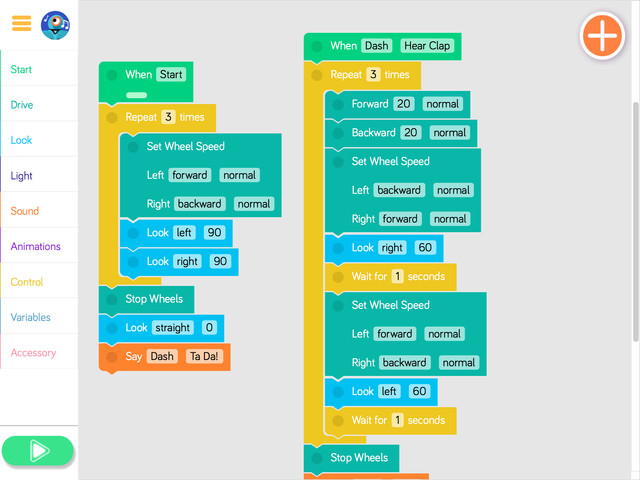
Say, "Dash loves to dance! Dash does a fun dance in this program."
Ask the students to look at the program and predict what they think will happen when it is run.
Run the program to see if the students' predictions were correct.
Say, "Dash is a great dancer but doesn't like dancing alone. Let's use an event handler that tells Dash to begin dancing when Dash Sees Dot."
Ask, "How could we change our program so that Dash only dances if Dot is close by?" (Sample response: "Change the event in the event handler from Hear Clap to Dash Sees Dot.")
Note: Before running the program again, make sure both Dash and Dot are connected to the app.
Say, "Dash is much happier now, but Dot wants to dance too! Let's use event handlers to help Dot join in the fun!"
Ask, "What event handler could we use to help Dot dance?" (Sample response: "We could add an event handler that tells Dot to say 'Wee!' when shaken.")
Tap on a Set Wheel Speed block and show students how they can change Dash’s spin moves by changing the speed and direction of the left and right wheels.
For example, students can have the left wheel spin forward very slow and have the right wheel spin forward very fast.
Have student volunteers take turns changing the settings in the Set Wheel Speed blocks and play the program after each change. Have students share their observations on how Dash’s movement changes.
Point out the Stop Wheels block and explain that the Set Wheel Speed block settings will keep going until you change the direction of the wheels or when you use the Stop Wheels block.
What is an event? (Sample response: "Events tell your computer to constantly look for a specific behavior or cue.")
How did you get Dash and Dot to interact? (Sample response: "Dash interacted with Dot when we used the cue Dash Sees Dot.")
How do you stop Dash's wheels? (Sample response: "You must add a Stop Wheels block.")
Have students work on the following activities in small groups (ideally 2-3 students per robot).
Encourage students to share tablet and robot time. Have them establish and rotate through roles such as:
Lead Programmer: Holds the tablet and manipulates the code.
Robot Wrangler: Retrieves and resets the robot after every program attempt.
Documentarian: Records group results, thoughts, and progress. Illustrates group designs and ideas.
When students work together while coding, they're able to help each other identify mistakes and develop creative solutions!
Have students use the Wonder Journal: Dash Planning, Dot Planning, and/or General Planning worksheet to design ways to add to or alter the Dance with Dash preset program. They can:
Change the sequence.
Add event handlers for Dash and/or Dot.
Change the wheel speed and movements.
Change the cues.
After they finish revising the program, have students:
Complete a Wonder Journal: Reflection worksheet.
Take a screenshot of their Blockly code.
Take a video of Dash while the code is running.
You can purchase our Learn to Code Challenge Card sets and Curriculum Guide here: https://logicsacademy.com/store/
Have students complete the following Challenge Cards:
D 2.1: Follow the Coach
D 2.2: Training Day
D 2.3: The Big Event
For each challenge, encourage students to:
Use the Wonder Journal: Dash Planning, Dot Planning, and/or General Planning worksheet to discuss how they can complete the challenge.
Review the Troubleshooting and Problem Solving & Debugging worksheets if they run into any problems with their code.
After they finish each challenge, have students:
Complete a Wonder Journal: Reflection worksheet.
Take a screenshot of their Blockly code.
Take a video of Dash and Dot while the code is running.
Update their Challenge Card Checklists.
Have student groups take turns sharing one of their programs with the class. Encourage them to:
Explain their design thinking (e.g., "We added an event for Dot because we wanted Dot to make fun sounds when moved.")
Share any obstacles and difficulties they overcame during the activity (e.g., "We had trouble getting Dash to Hear Clapbecause the classroom was so loud, so we asked the teacher for permission to run our program in the hall").
Encourage students to ask each other how they accomplished different objectives and give each other feedback on their programs. Possible questions/feedback includes:
"How did you (change the wheel speed)?"
"I like how you (used a lot of events for Dot's dance.)."
How did events help you with your program? (Sample response: "Events told Dash to dance when Dot was nearby.")
Use our Evaluation Rubric to review students' work and presentations.
[Optional] Share your students' work with the world using @logicsacademy and #dashanddot!
1B-AP-10: Create programs that include sequences, events, loops, and conditionals.
1B-AP-11: Decompose (break down) problems into smaller, manageable subproblems to facilitate the program development process.
1B-AP-12: Modify, remix, or incorporate portions of an existing program into one’s own work, to develop something new or add more advanced features.
1B-AP-15: Test and debug (identify and fix errors) a program or algorithm to ensure it runs as intended
1B-AP-16: Take on varying roles, with teacher guidance, when collaborating with peers during the design, implementation, and review of program development.
1B-AP-17: Describe choices made during program development using code comments, presentations, and demonstrations.
4d: Exhibit a tolerance for ambiguity, perseverance, and the capacity to work with open-ended problems.
5a: Formulate problem definitions suited for technology-assisted methods such as data analysis, abstract models and algorithmic thinking in exploring and finding solutions.
6b: Create original works or responsibly repurpose or remix digital resources into new creations.
7c: Contribute constructively to project teams, assuming various roles and responsibilities to work effectively toward a common goal.
3-5-ETS1-2: Generate and compare multiple solutions to a problem based on how well they meet the criteria and constraints of the design problem.
CCSS.ELA-LITERACY.W.2.8: Recall information from experiences or gather information from provided sources to answer a question.
CCSS.ELA-LITERACY.SL.3.1: Engage effectively in a range of collaborative discussions (one-on-one, in groups, and teacher-led) with diverse partners on grade 3 topics and texts, building on others' ideas and expressing their own clearly.
CCSS.ELA-LITERACY.SL.3.3: Ask and answer questions about information from a speaker, offering appropriate elaboration and detail.
CCSS.ELA-LITERACY.SL.3.4: Report on a topic or text, tell a story, or recount an experience with appropriate facts and relevant, descriptive details, speaking clearly at an understandable pace.
C5: Students will use technology to aid collaboration during inquiry.
C6: Students will use technology to investigate and/or solve problems.
F6: Students will demonstrate a basic understanding of the operating skills required in a variety of technologies.
C3.1 solve problems and create computational representations of mathematical situations by writing and executing code, including code that involves sequential, concurrent, and repeating events
Outcome 5: Students will be expected to select and use, with teacher support, grade-appropriate digital tools to develop and represent learning for various purposes, both individually and collaboratively.
Outcome 9: Students will be expected to
use grade-appropriate ICT terminology
safely operate computers and digital devices
• Use trial and error to make changes, solve problems, or incorporate new ideas from self or others
• Develop their skills and add new ones through play and collaborative work
• Explore the use of simple, available tools and technologies to extend their capabilities