
(Francais) B3: Loops - Repeat X with Dot
Description Level B, Lesson 3: Students will review their previous programming with sequencing, loops, and the Repeat Forever block. They will also be introduced to using the Repeat block to define a

Educational Standards
CSTA
ISTE
NGSS
Common Core
Before the Lesson
Prior Experience
It is recommended that students complete:
- Level A Lessons: All
- Level B: Lesson 1-2
- [Optional] Level A Challenge Cards: All
- [Optional] Level B Challenge Cards: B 1.1-1.3
You can purchase our Learn to Code Challenge Card sets and Curriculum Guide here: https://store.makewonder.com/#/education
Preparation
- Fully charge the tablets and robots.
- Install the Wonder Workshop Blockly app on each tablet.
Instruction
Introduction
- Project your tablet screen and open the Blockly app.
- Say, "You have been using the Repeat Forever block when you want Dash or Dot to make loops. That means the loop never stops. What if you want a loop to stop after a specific number of times?"
- Say, “In this lesson, you will use a Repeat block. When you use a Repeat Forever block, the sequence inside the block continues to repeat until you tell it to stop. However, a Repeat block repeats the code sequence a specific number of times."
- Review a real-life example where you would want something repeated a specific number of times, such as:
- A drummer repeats a beat a specific number of times until the end of a song.
- A video game player repeats movements a specific number of times to get to the end of a level.
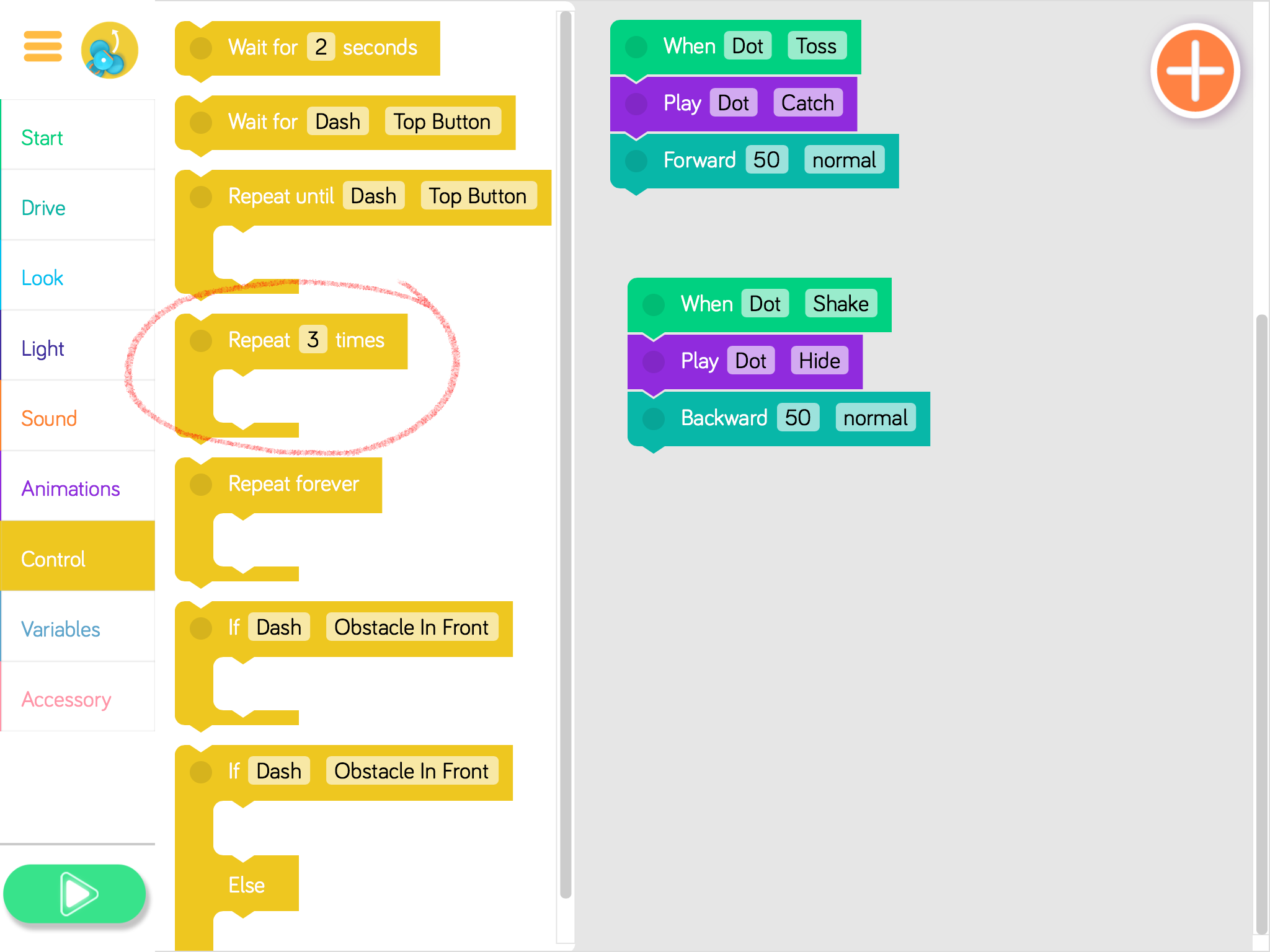
- Show students where they can find the Repeat block in the Control menu. (Note: This is the block labeled Repeat [X] times.)
Quick Check
- What is a loop?
- When would you like to repeat something a specific number of times?
- Where do you find the Repeat block in Blockly?
Review
Loops Review
- Briefly review how students have used loops with Dash and Dot before.
- Say, “We created a dance for Dash using loops. We told Dash what dance moves to do. Then we told Dash to repeat the moves again and again.”
- Say, “Before we used loops, we programmed a dance for Dash. What did the code for Dash’s dance look like without loops?”
- Sample response: “When we created the code for the dance without loops, it was very long.”
- Ask, “What did the code for Dash’s dance look like when you used loops?”
- Sample response: “The dance was much shorter and easier to create when we used loops.”
- Ask, “Why do we use loops?”
- Sample response: “We use loops when we want to repeat the same sequence of code over and over again. It makes our code easier to write.”
Code.Org Connections [Optional]
- Review Code.org’s lesson focusing on loops: https://studio.code.org/s/courseb-draft/stage/9/puzzle/4
- Then ask: “How was using loops helpful in solving this puzzle?”
- Sample response: “Using loops meant I could use fewer blocks in my code, which means it took me less time to create it.”
Guided Practice
Activity: Zoo Who
- In Blockly, go to the Create New Project menu and select the Zoo Who preset program. Then tap “create.”
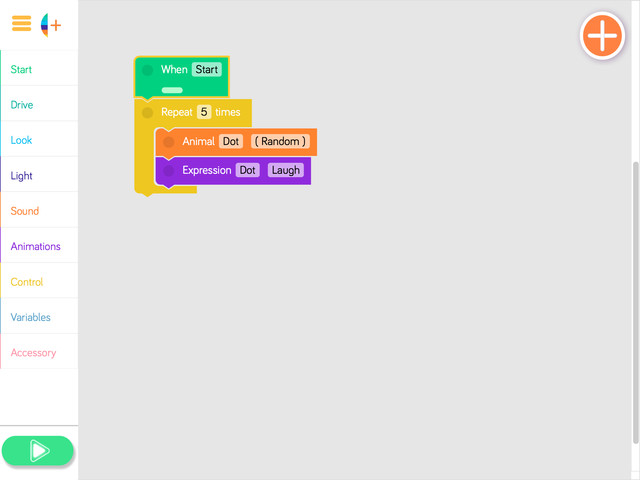
- Say, “Dot wants to practice repeating a task.”
- Play the program and have students share what they notice. (Sample response: “Dot repeated the steps 5 times.”)
- Select a student to point out the Repeat block.
- Ask, “What would happen if we changed the number in the Repeat block?”
- Have students take turns sharing their guesses. (Sample response: “Dot would make more animal sounds!”)
- Select student volunteers to suggest what number to use in the Repeat block.
- Tap the Repeat block and then use the pop-up menu to change the number of times the loop repeats. Then play the program.
- Continue selecting student volunteers to change the number in the Repeat block and play the program to show students how Dot’s behavior changes each time.
Quick Check
- What is a loop? (Sample response: “A loop repeats the bits of code placed inside it.”)
- What is the difference between the Repeat Forever and the Repeat block? (Sample response: “The Repeat block lets us choose how many times the code is repeated.”)
- How do you change the number of times you want a code to repeat in Blockly? (Sample response: “You tap on the Repeat block and then change the number.”)
Wrap Up
Student Presentations
- Have student groups take turns sharing one of their programs with the class. Encourage them to:
- Explain their design thinking (e.g., "We chose to change the number of times the algorithm repeated so we could see how many animal sounds Dot would make").
- Share any obstacles and difficulties they overcame during the activity (e.g., "We weren’t sure how to change the number of times something repeats, but then we learned that if we tap on the number on the block, a menu pops up where we can choose a different number").
- Encourage students to ask each other how they accomplished different objectives and give each other feedback on their programs. Possible questions/feedback includes:
- "How did you (program Dot to repeat two different sounds)?"
- "I like how you (changed Dot’s sequence and then added another Repeat Forever block)."
- "What if you (had Dot repeat more sequences)?"
Follow-Up Questions/Discussion
- Describe a way you use loops in your life. (Sample response: “I use loops when I chew my food. I open and close my mouth over and over until I swallow.”)
- How was the Repeat block helpful in this code? (Sample response: “Using the Repeat block helped me include all the animal sounds without having to add a separate block for each one.”)
Assessment
- Use our Evaluation Rubric to review students' work and presentations.
- [Optional] Share your students' work with the world using @logicsacademy and #dashanddot!
Independent Practice
Instructions
Have students work on the following activities in small groups (ideally 2-3 students per robot).
Encourage students to share tablet and robot time. Have them establish and rotate through roles such as:
- Lead Programmer: Holds the tablet and manipulates the code.
- Robot Wrangler: Retrieves and resets the robot after every program attempt.
- Documentarian: Records group results, thoughts, and progress. Illustrates group designs and ideas.
When students work together while coding, they're able to help each other identify mistakes and develop creative solutions!
Zoo Who Extension
1. Have students use the Wonder Journal: Dot Planning or General Planning worksheet to design ways to add to or alter the Zoo Who preset program. They can:
- Change the sequence.
- Change the number in the Repeat block.
- Add another Repeat block.
- Put lights and more animations or sounds in the Repeat block.
2. After they finish revising the program, have students:
- Complete a Wonder Journal: Reflection worksheet.
- Take a screenshot of their Blockly code.
- Take a video of Dash while the code is running.
Challenge Cards
- You can purchase our Learn to Code Challenge Card sets and Curriculum Guide here: https://logicsacademy.com/store/
- Have students complete the following Challenge Cards:
- B 2.1: Petting Zoo
- B 2.2: Quick, Hide!
- B 2.3: You Are Getting Sleepy . . .
- For each challenge, encourage students to:
- Use the Wonder Journal: Dot Planning or General Planning worksheet to discuss how they can complete the challenge.
- Review the Troubleshooting and Problem Solving & Debugging worksheet if they run into any problems with their code.
- After they finish each challenge, have students:
- Complete a Wonder Journal: Reflection worksheet.
- Take a screenshot of their Blockly code.
- Take a video of Dot while the code is running.
- Update their Challenge Card Checklists.